7 Ways to Fix If Facebook App Not Showing Comments on Posts & Reels
Is your Facebook app not showing comments on posts and Reels? According to some Reddit and Twitter posts, when users open the comments section, they see a white screen instead of the comments loading. Not only this, but sometimes error messages like “Something Went Wrong” are also seen.
If you’re experiencing problems with comments on the Facebook website or app, don’t worry! You’re not alone. Below I have discussed some of the major causes of this problem and possible fixes, by following which you may be able to resolve this problem.
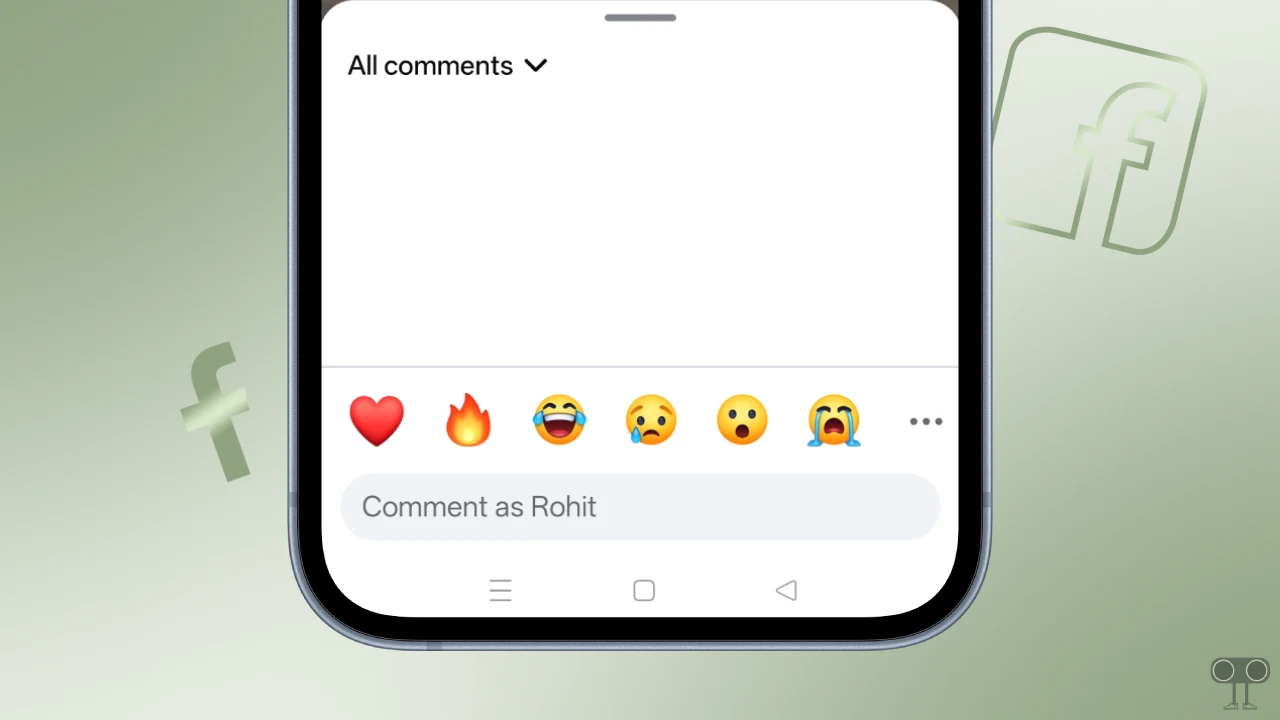
Why are comments not showing on facebook?
If you cannot see Facebook posts, reels, or group comments, then some of the major reasons for this could be filter hiding, privacy restrictions, community standard violations, app bugs, temporary server outages, connectivity issues, etc.
- Internet Issue: If the internet connected to your device is slow or not working at all, Facebook will be unable to load comments.
- FB Server Down: Sometimes Facebook servers go down due to maintenance or glitches, after which Facebook functions like comments, etc. do not work.
- Hidden Comments: It’s also possible that the author or moderator has hidden comments on posts or reels to reduce spam.
- App Glitch: Sometimes app bugs and glitches also prevent comments from loading properly, causing a white screen to appear in the comments section instead of the comments.
- You’re Blocked: It’s possible the user has blocked you, but due to the cache, the post is still visible; in that case, comments won’t appear.
Also read: Facebook Messenger Says “Unable to Load Camera Roll”
7 Ways to Fix If Facebook App Not Showing Comments on Posts & Reels
1. Check Your Internet Connectivity
Facebook is an online platform, and its features rely on the internet. If your internet is slow or not working at all, you may not see comments on Facebook posts. First of all, you have to test the internet speed on the phone; if the internet is slow, then switch to WiFi instead of mobile data.
2. Check Facebook Server Status
Facebook is a server-based service, and its functions are managed through the server. If Facebook servers are currently experiencing an outage due to maintenance or a glitch, features like comments may not work. You can check Facebook’s real-time outage by visiting the MetaStatus and Downdetector pages.
3. Check Comment Filters
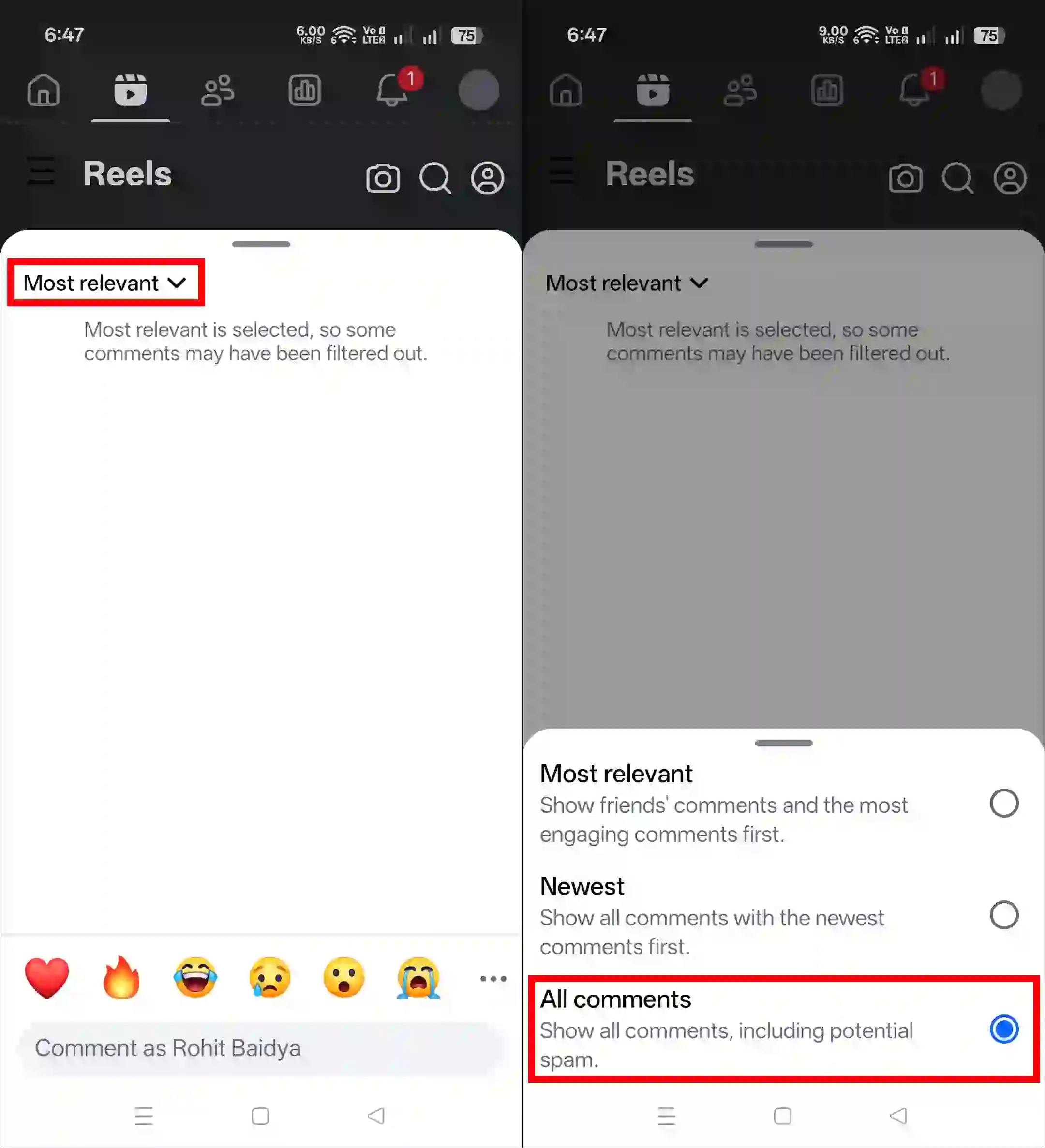
In the comment section of Facebook, you get a filter that has ‘Most Relevant’, ‘Newest’, and ‘All Comments’ options. Sometimes it is selected on Most Relevant; you just have to set it to “All Comments,” and then you will start seeing all the comments.
- Open Facebook App and Tap on Comment Icon of Any Post.
- Tap on Most Relevant at Top Left of Comment Section.
- Now, Select All Comments.
4. Close Facebook App and Restart Device
Completely close the Facebook app. Then restart your phone. Doing this often fixes temporary issues immediately.
5. Clear Facebook App Cache
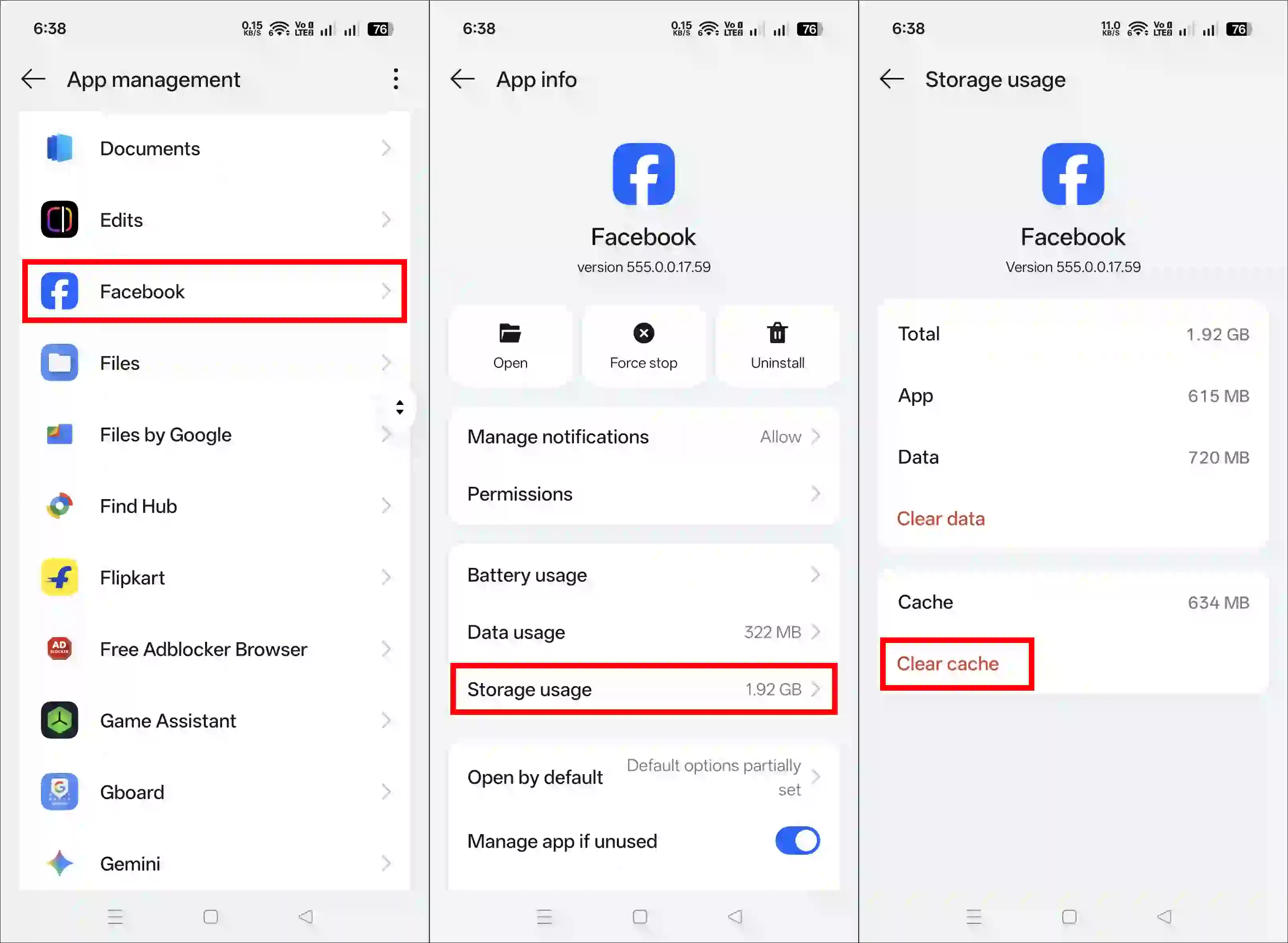
Corrupted cache data in the Facebook app often breaks its functions, causing comments to fail to load. On Android phones, you can easily clear the corrupted cache data of the Facebook app. The steps to do this are mentioned below.
- Open Settings on Your Phone.
- Go to Apps > All Apps > Facebook.
- Tap on Storage and Data.
- Tap on Clear Cache.
6. Update Your Facebook App
If you’re using an older version of Facebook, this could be a reason why your comments aren’t showing up. Older versions often have some issues. You should immediately update your Facebook app to the latest version from the Google Play Store or Apple App Store.
Note: If the problem persists after updating, you may need to reinstall the Facebook app. Uninstall the app, then reinstall it and log in to your account.
7. Report This Problem
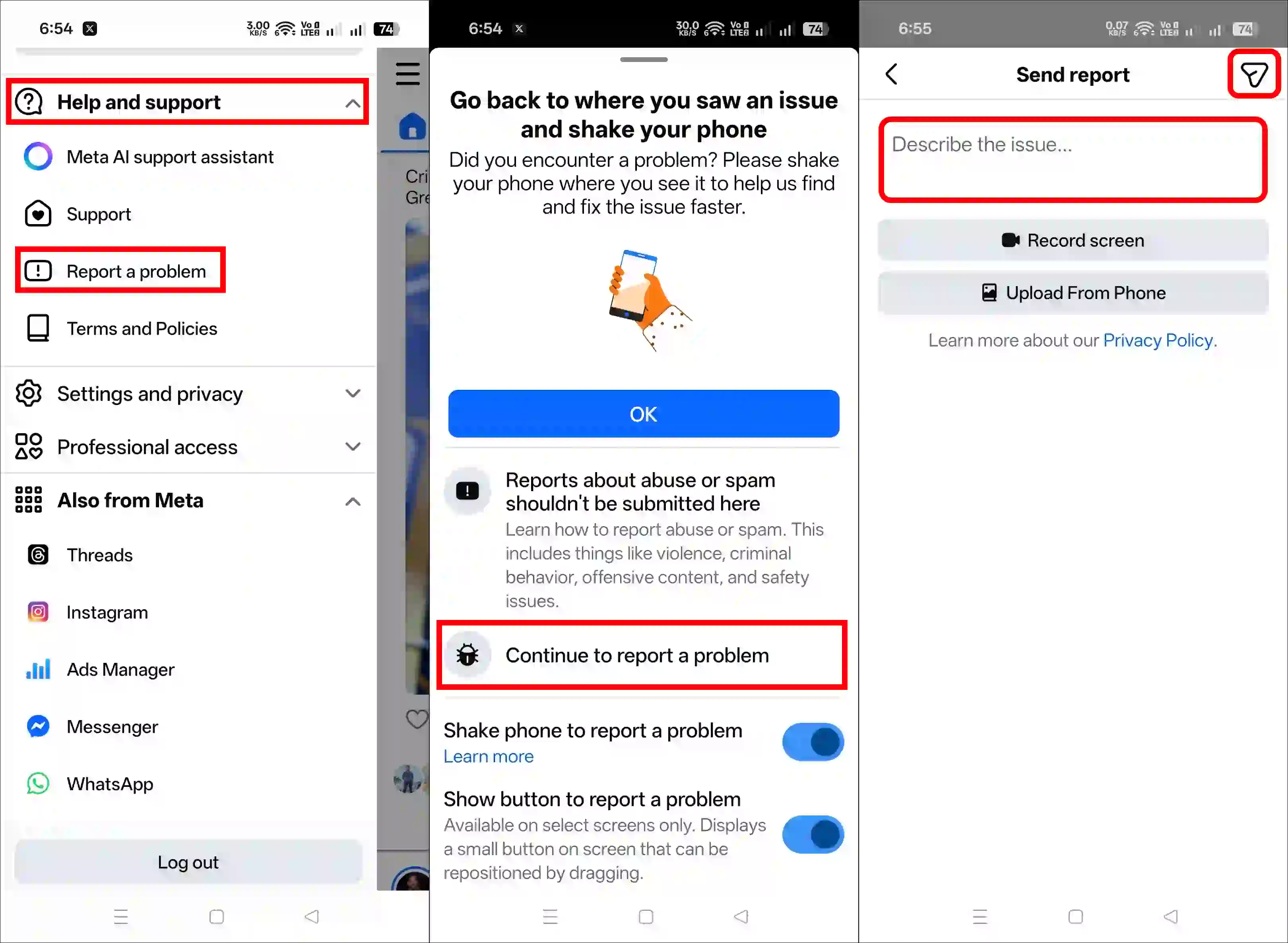
If all of the above methods fail, you may need to report the issue. The Facebook app and website have a built-in “Report a Problem” option that lets you report any issues you’re experiencing with the app to Facebook.
- Open Facebook App and Tap on Three ≡ Lines.
- Expand “Help and Support” and Tap on Report a Problem.
- Tap on “Continue to Report a Problem”.
- Next, Select Your Product and Describe the Issue and Send It.
Note: You Can Upload Screenshot or Record the Issue.
Also read: How to Turn Off Comments on a Facebook Post in a Page, Profile, or Group