Fix “To Continue, Give Google Photos Access to Your Photos” on Android & iPhone
Is your Android phone or iPhone showing the Google Photos error message “To continue, give Google Photos access to your photos; go to settings”? Don’t worry, you are not alone. This message appears because the photo permission for the Google Photos app is disabled on your phone.
Media access permission is mandatory for some applications on the phone that contain videos and photos. If this permission is disabled, you won’t be able to see videos and photos stored on your device in that app. This error message from Google Photos is also a result of this media permission.
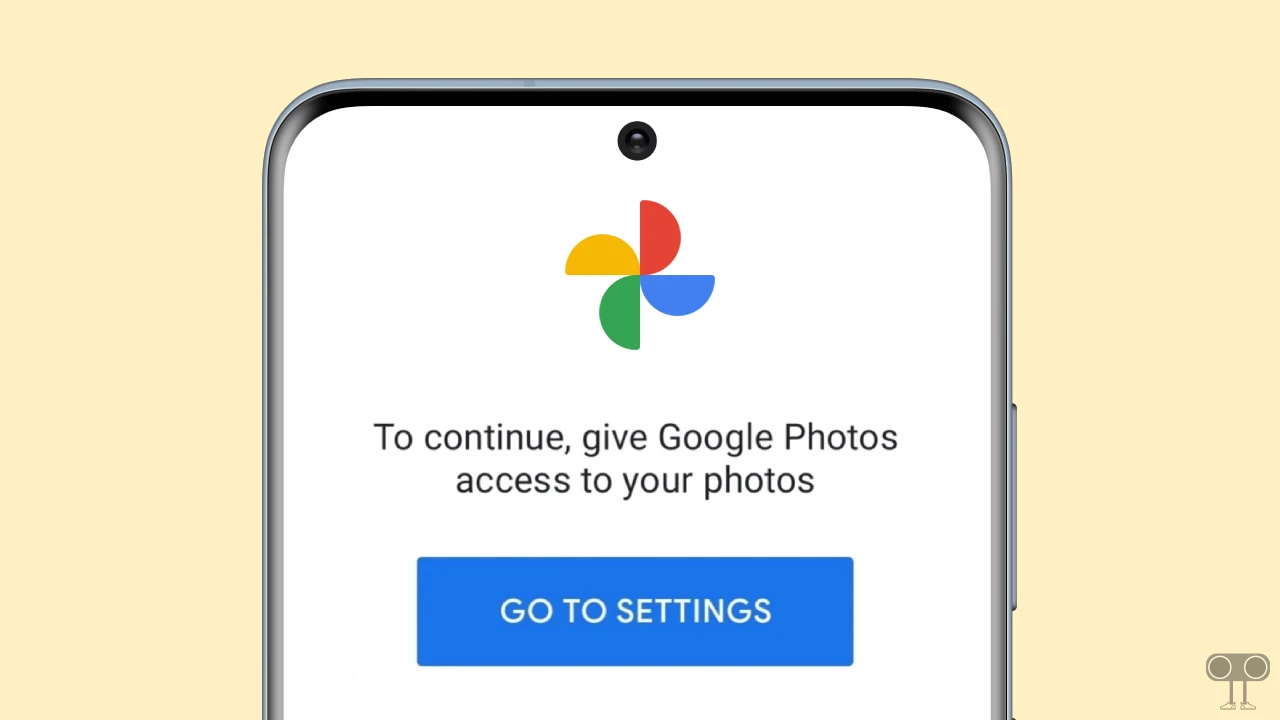
How Fix “To Continue, Give Google Photos Access to Your Photos” on Google Photos
1. On Android
If you’re an Android phone user and are bothered by this message from the Google Photos app, you can easily fix it by following the steps mentioned below. There’s an option to enable media file access for an app on an Android phone.
Whether you use any Android phone, such as Samsung, Vivo, Oppo, Realme, Poco, Google Pixel, Nothing, Infinix, Iqoo, or more, the steps mentioned below will work for you.
To allow Google Photos access to photos on Android:
- Open Settings on Your Phone.
- Go to Apps > All Apps > Google Photos.
- Tap on Permissions.
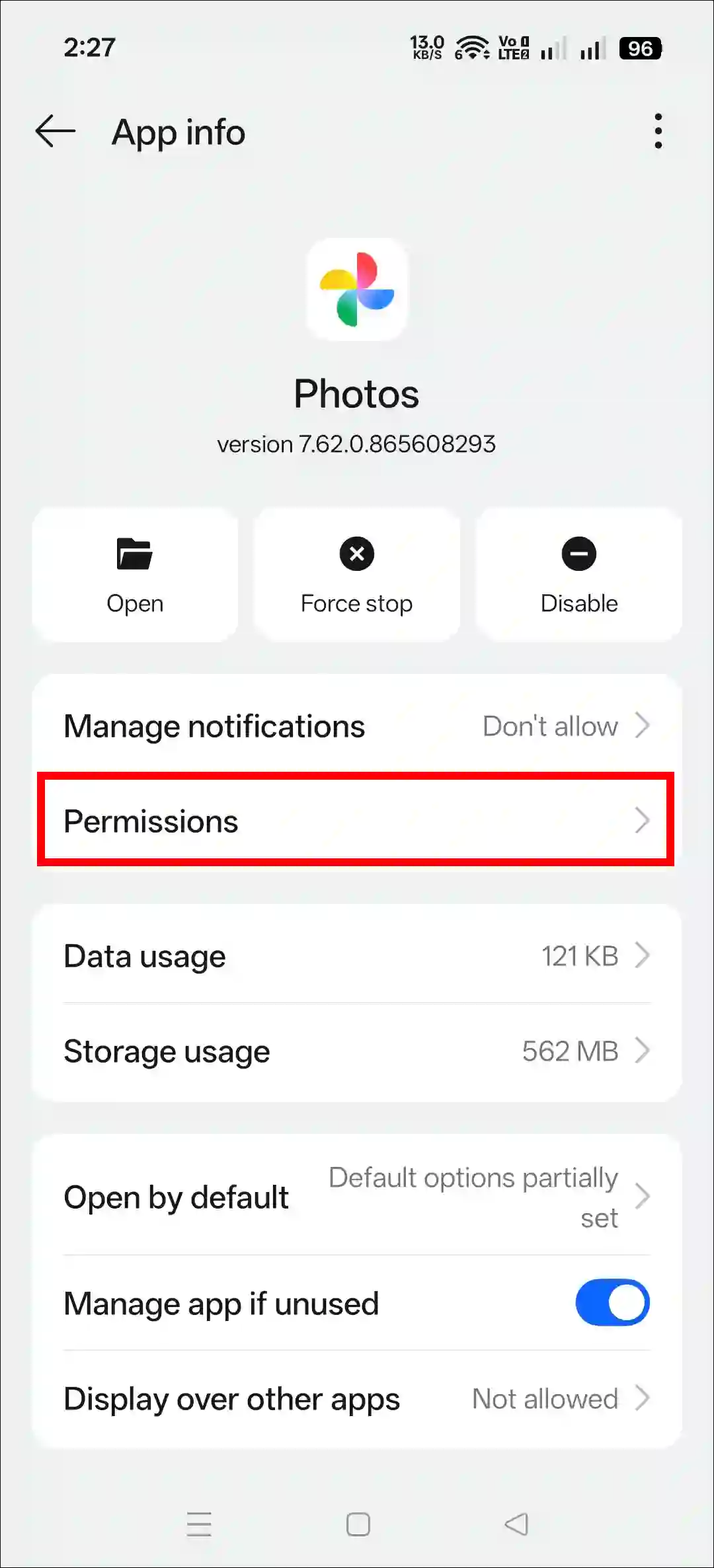
- Tap on Photos and Videos/Media Files.
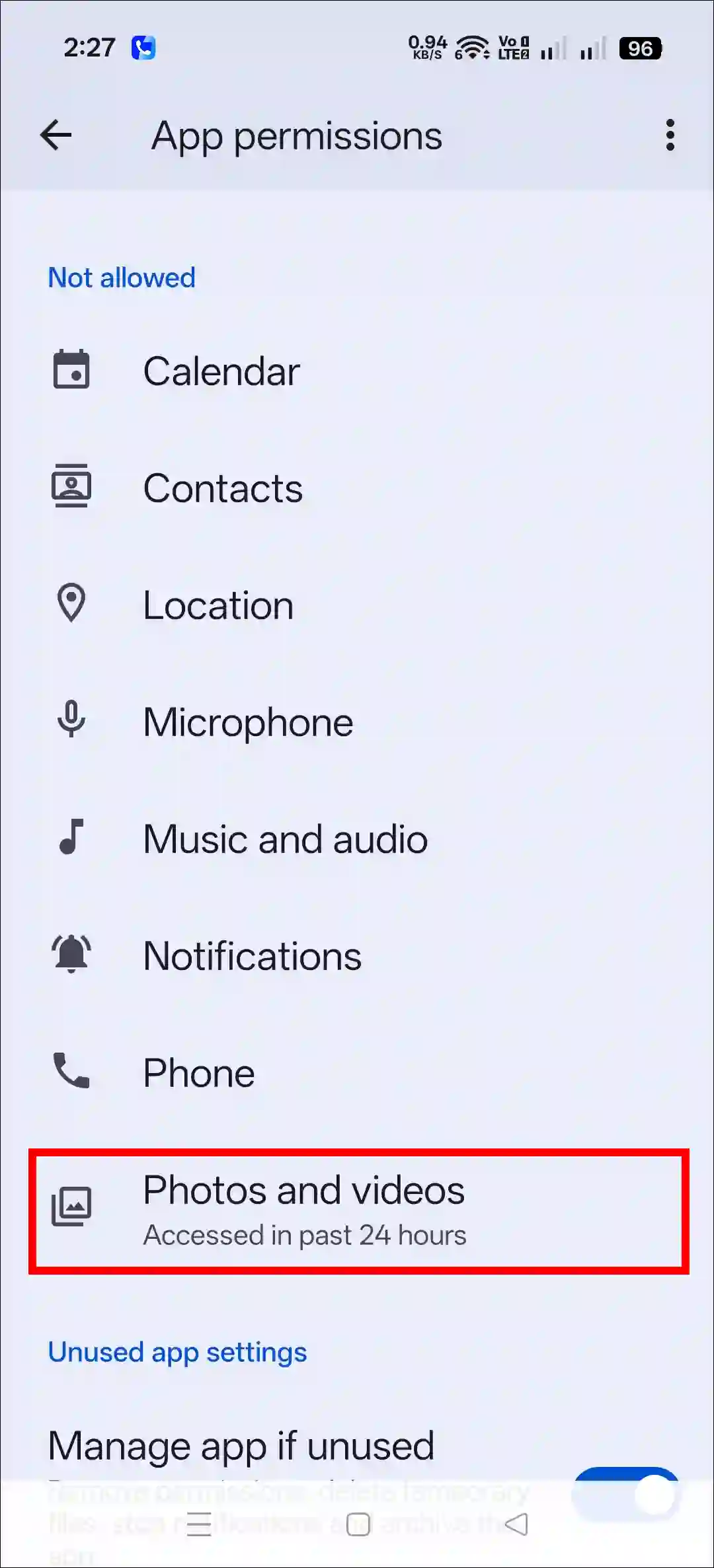
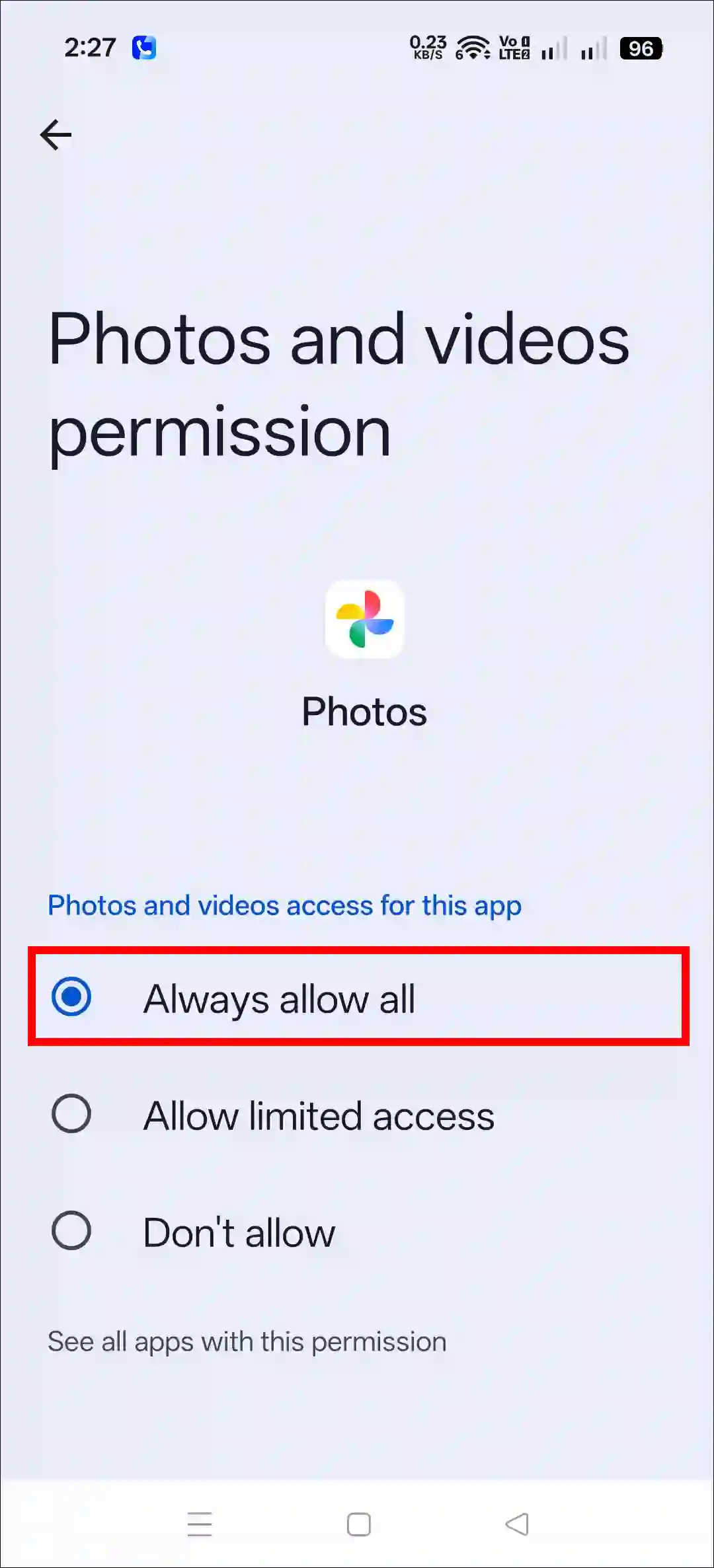
- Now, Select Always Allow All Option.
2. On iPhone/iPad (iOS)
If you are also frustrated with this Google Photos issue on your iPhone or iPad, do not worry! Below, I have provided some steps to help you enable media file permissions for the Google Photos app. This method works on both iPhones and iPads.
To allow Google Photos access to photos on iPhone:
- Open Settings on Your Device.
- Go to Privacy > Photos.
- Select Google Photos.
- Choose “All Photos” or “Allow Access to All Photos”.
That’s it! You’re done…
Also read: How to Change Language in Google Photos
Fix Google Photos Permissions Greyed Out Problem
If your Google Photos permissions are greyed out on your phone, you are not alone. This technical glitch prevents the Google Photos app from functioning properly. The troubleshooting methods mentioned below will help you fix this issue.
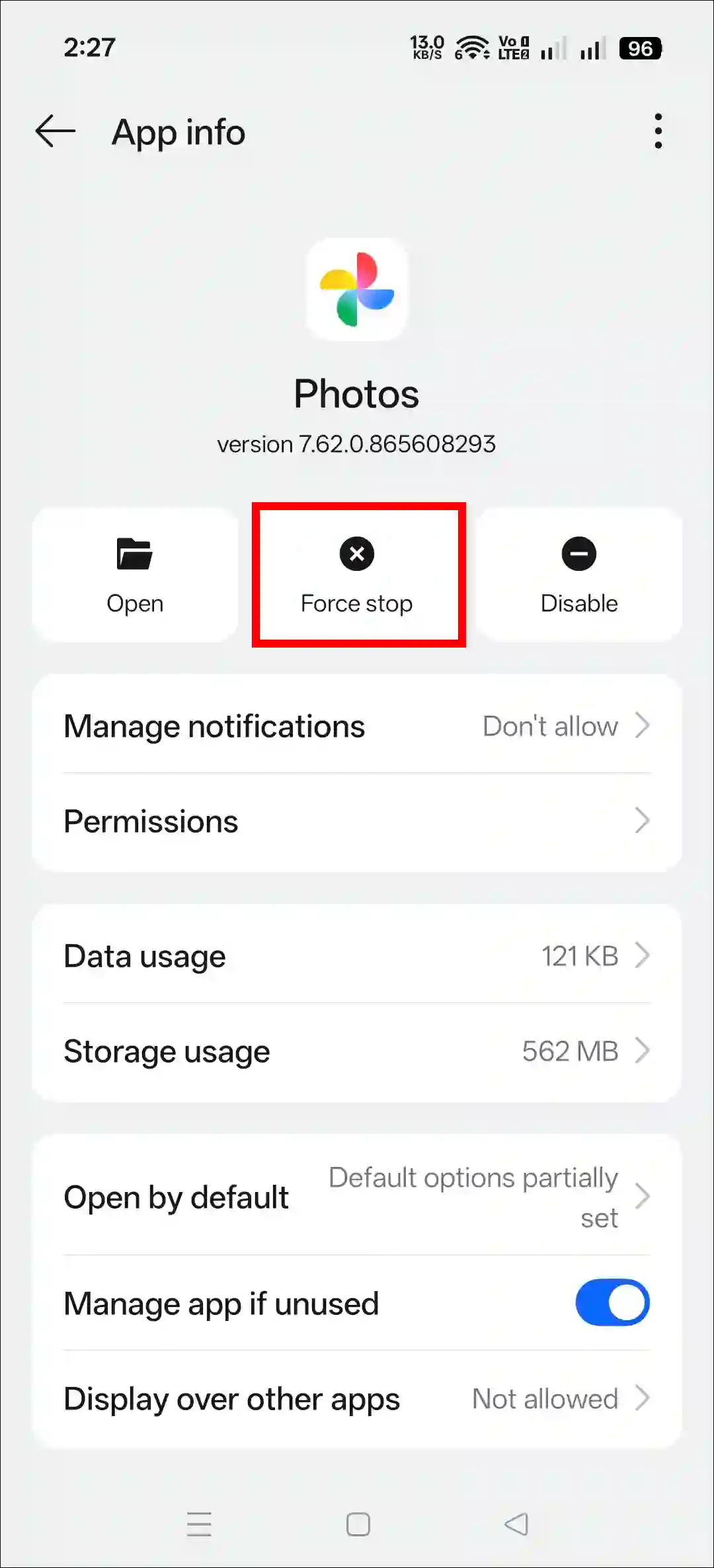
1. Force Stop & Restart
- Open Settings on Your Android Phone.
- Go to Apps > All Apps > Google Photos.
- Tap on Force Stop and Then Restart Your Phone.
2. Clear Cache/Storage
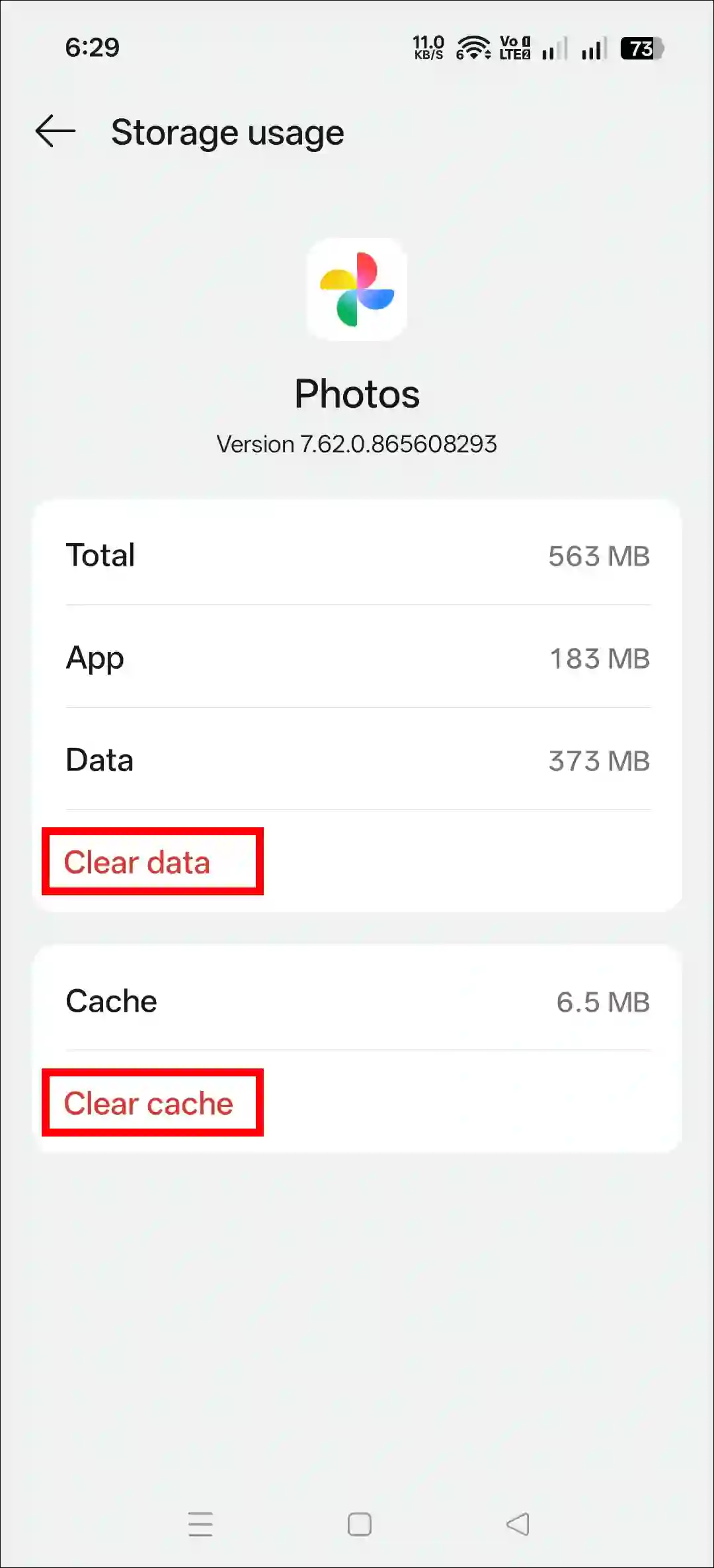
- Open Settings on Your Android Phone.
- Go to Apps > All Apps > Google Photos.
- Tap on Storage.
- Now, Tap on “Clear Cache” and “Clear Data”.
3. Reinstall the Google Photos App
If the steps above are not working, you now need to reinstall the Google Photos app. This process deletes old corrupted files and generates new files, which fixes all issues. To do this, uninstall the Google Photos app from your phone, then reinstall it from the Play Store or App Store.
Also read: Stop Video Playback (Grid Playback) on Google Photos
I hope you found this article helpful and that you learned how to fix the “To Continue, Give Google Photos Access to Your Photos” message on Android and iPhone. If you have any problems or questions related to Google Photos, please let us know in the comments below. Don’t forget to share this article with your friends on social media.