
Snapchat’s Director Mode Feature! Here’s How to Use and Fix It?
Snapchat is also known for its fun features, especially its camera features. It includes a special feature called “Director Mode”, which is currently generating a lot of buzz. Let’s find out what this feature is and how to use it. Also, for users who are missing ‘Director Mode’ on Snapchat, here is how to fix the issue.
What is Director Mode in Snapchat?
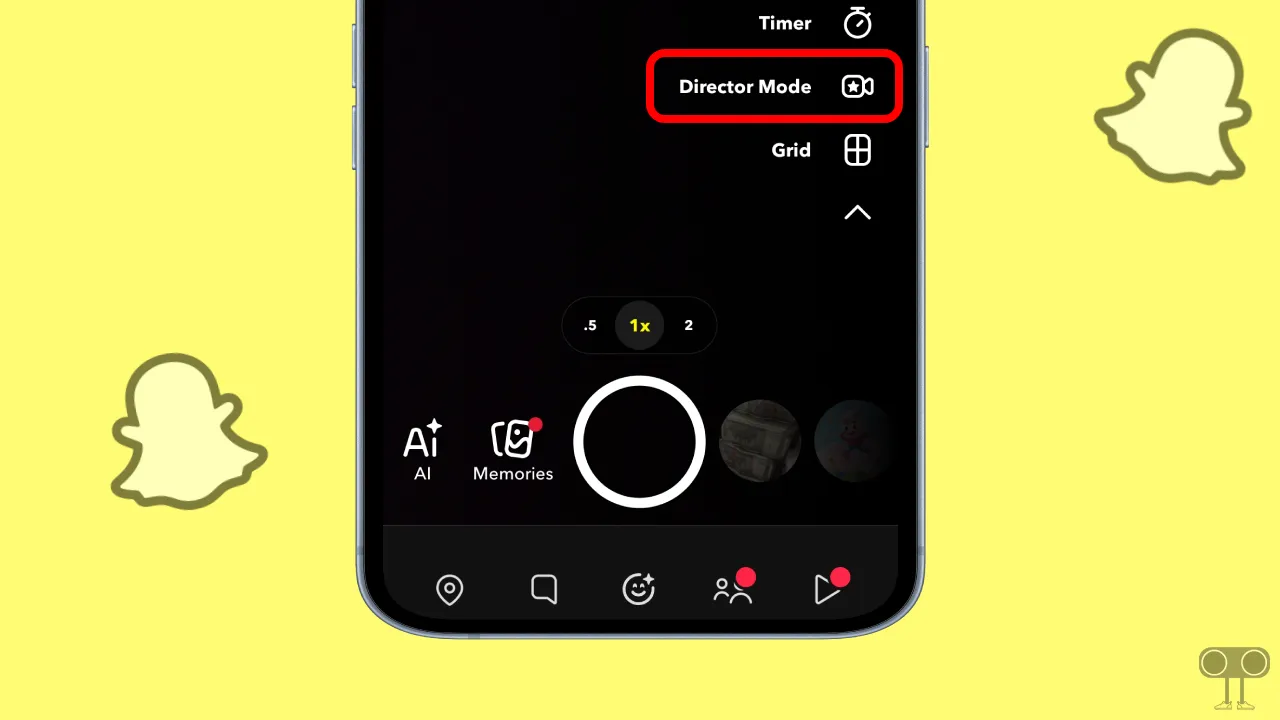
Director Mode in Snapchat is a built-in camera feature that allows you to create high-quality and engaging videos for Spotlight and Stories. This mode groups all the advanced features of the Snapchat camera in one place, making editing easier for you. It is available for both Android and iOS (iPhone) users.
Main Feature of Snapchat’s Director Mode:
- Camera Switch
- Add Music/Sound
- High Quality Lenses
- Green Screen
- Timer
- Flash
- Import Media Button
- Multi-clip Recording
- Hands-Free
Also read: Stop Snapchat from Showing You in Quick Add (Find Friends)
Where is Director Mode in Snapchat After New Update 2026
After Snapchat’s recent update, some users cannot find Director Mode because Snapchat moved it to a new location. You can easily locate it by opening the Snapchat camera and tapping the drop-down arrow in the right-hand menu panel; the ‘Director Mode’ option will then appear in the expanded menu.
How to Use Director Mode on Snapchat?
Below, I have explained step-by-step how to use Director Mode after the new Snapchat update.
- Open Snapchat App on Your Phone and Go to Camera.
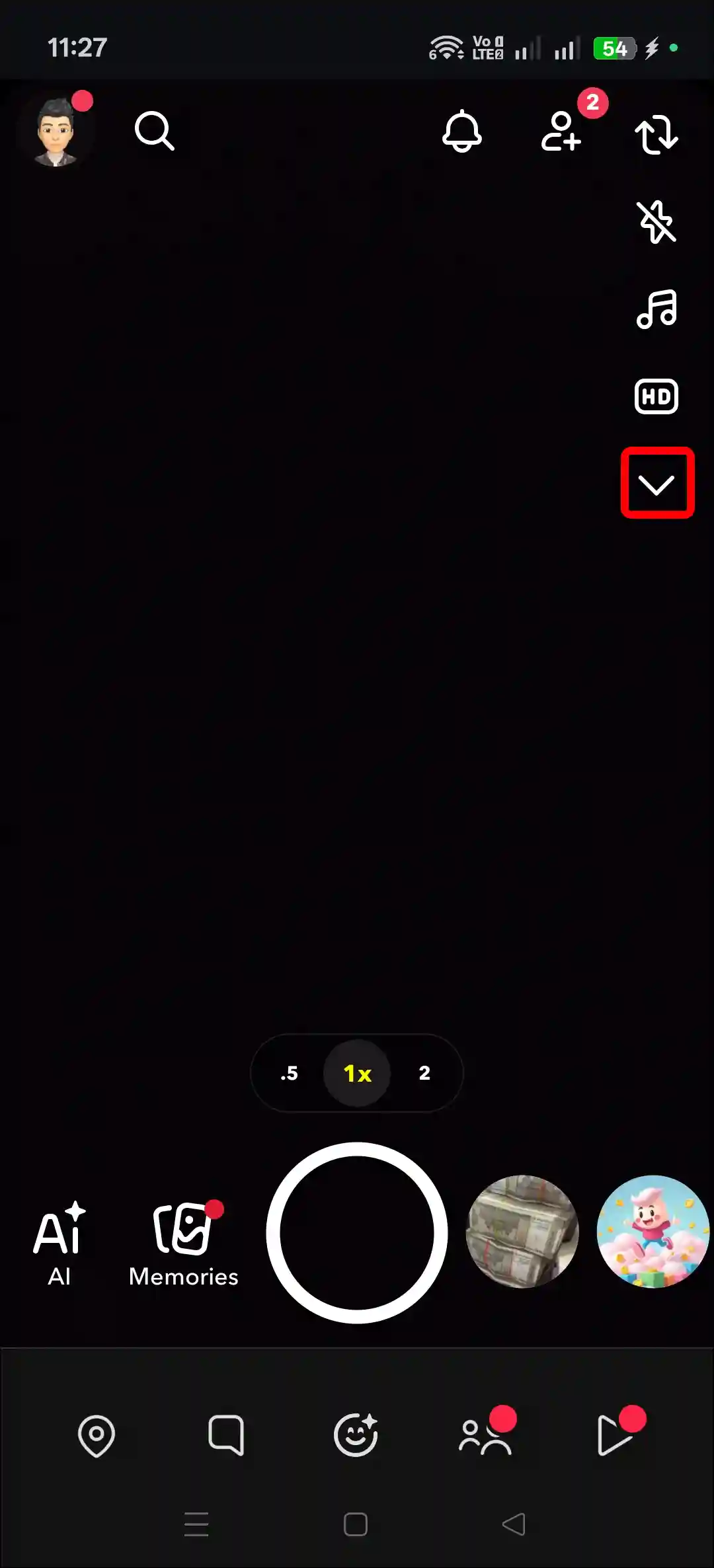
- At The Right Side Menu, Tap on Dropdown Arrow.
- In The Expanded Menu, Tap on Director Mode.
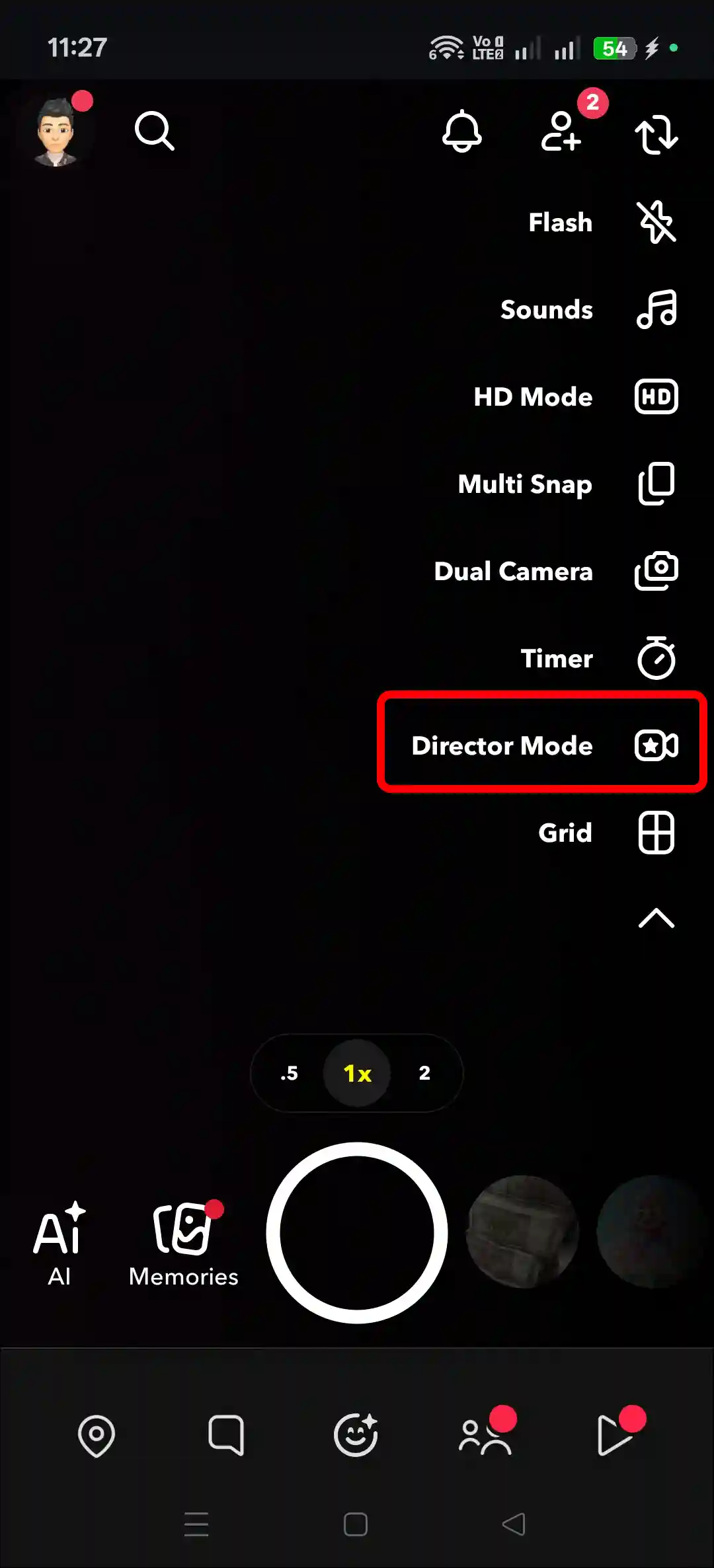
- Now, You Can use Sounds, Additional Lenses, Green Screen, Timer, Flash Etc.
That’s it! You’re All Done…
Also read: Stop Snapchat from Saving Snaps to Camera Roll
Fix If Snapchat’s Director Mode Option Not Showing Up
According to posts by some users on Reddit, ‘Director Mode’ has disappeared from their Snapchat, while others are reporting that the media upload feature within the mode is not working. Let’s explore the reasons behind this issue and how it can be fixed.
A few reasons behind this problem:
- Outdated Snapchat App
- Corrupt Snapchat Cache
- Snapchat Feature’s Files Missing
1. Close and Reopen Snapchat App
Sometimes, the Director Mode option does not appear in Snapchat due to a temporary glitch. Simply relaunching the app can resolve this issue. You simply need to close Snapchat and clear all apps from the ‘Recent Apps’ tab. Now, reopen the Snapchat app and check whether the option appears or not.
2. Clear Snapchat App Cache
While the cache helps apps launch quickly, it can sometimes become corrupted and disrupt the app’s functionality. However, you can clear the corrupted cache of any application on your Android phone. All the steps are listed below one by one.
To clear Snapchat App’s Cache:
- Tap & Hold the Snapchat App Icon.
- Tap on App Info.
- Tap on Storage & Cache.
- Tap on Clear Cache.
3. Update Your Snapchat App
If Director Mode is missing from your Snapchat app, it is likely due to an outdated app version. You can unlock Director Mode by updating your Snapchat to the latest version from the Google Play Store or Apple App Store. It is very easy.
I hope you found this article helpful and learned how to access Director Mode on Snapchat. If you have any other questions about Snapchat, feel free to ask in the comments below. Don’t forget to share this article.

After updating snap chat still not coming director mood pls fix my problem
Not showing director mode
Not show director mood pls give solution for this problem please help me
Thank u
Director mode not showing option plz solve problem in 1houre
Director mode is still not showing.
Kindly help me with that, thank you!
Director mode not showing
Direct mode is not showing
director mode is not appearing after all the efforts
Direct mood is still not showing.kindely help me and solve the problem