
Remini Says “Oops! Something Went Wrong”? Here’s How to Fix It
Are you getting an “Oops! Something Went Wrong” error message popping up on your screen while using the Remini app? Don’t worry, you’re not alone! Many users are facing this issue and are posting about it on Reddit and Twitter. In this article, I have shared how you can fix this problem.
What Does Remini Oops! Something Went Wrong Mean?
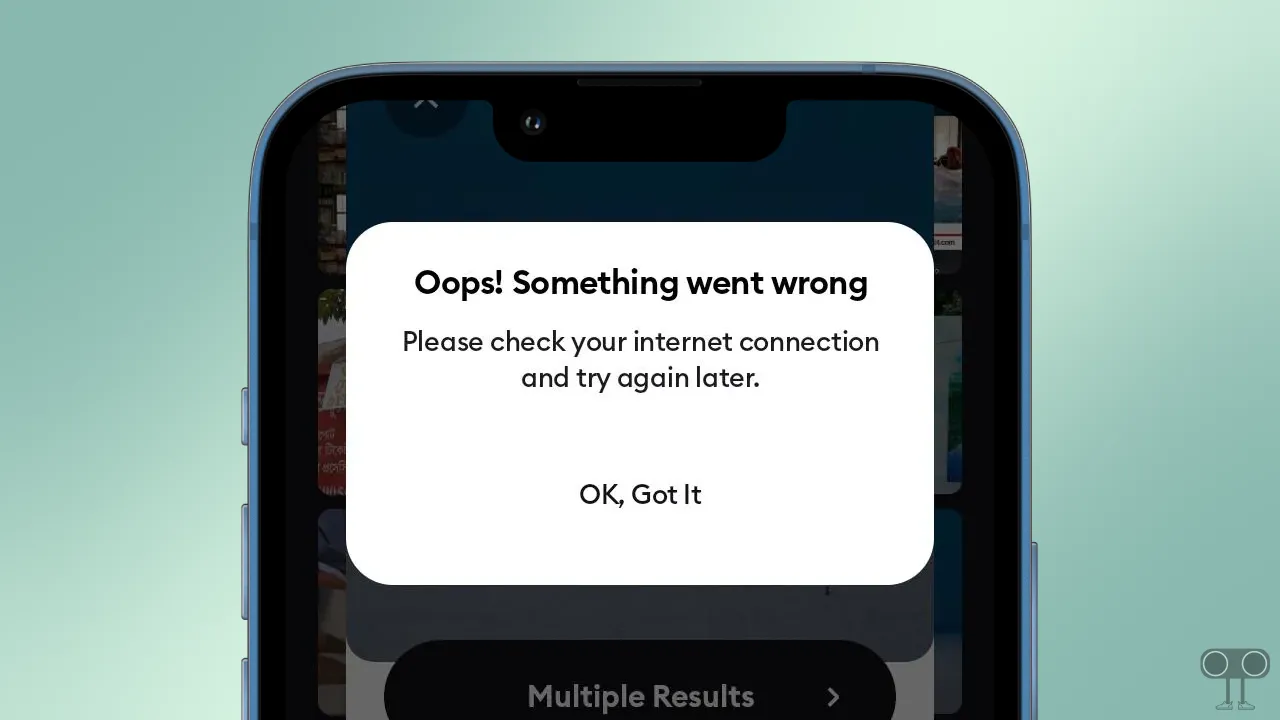
In the Remini app, this pop-up message means that the app is currently unable to fulfill your request. There could be several major reasons for this, such as a weak internet connection, temporary server glitches, corrupted app cache or data, outdated app versions, device compatibility issues, etc.
Additionally, Remini may display such an error message if you have reached the maximum generation limit for the provided AI features. But there is no need to worry! You can easily get rid of this problem by following a few essential methods listed below.
This error message appears on your screen something like this:
Oops! Something went wrong
Please check your internet connection and try again later.
OK, Got It
How to Fix Oops! Something Went Wrong Problem in Remini App
Before following the troubleshooting methods listed below, check the Remini server status. Since this issue comes from the server side, see if Remini is currently down.
Fix 1. Check Your Internet Connection
An unstable internet connection can also frequently cause this issue. because If your internet isn’t working, your request won’t reach the server, and the server won’t respond. To address this, ensure that the network you are connected to is functioning properly. You can also switch to a different Wi-Fi connection.
Fix 2. Force Close and Restart Remini App
If the Remini app is showing the same message, the simplest solution is to close and restart the app. To fix it, minimize the Remini app and clear all apps from the Recent tab. Then, reopen the Remini app, and it should load properly.
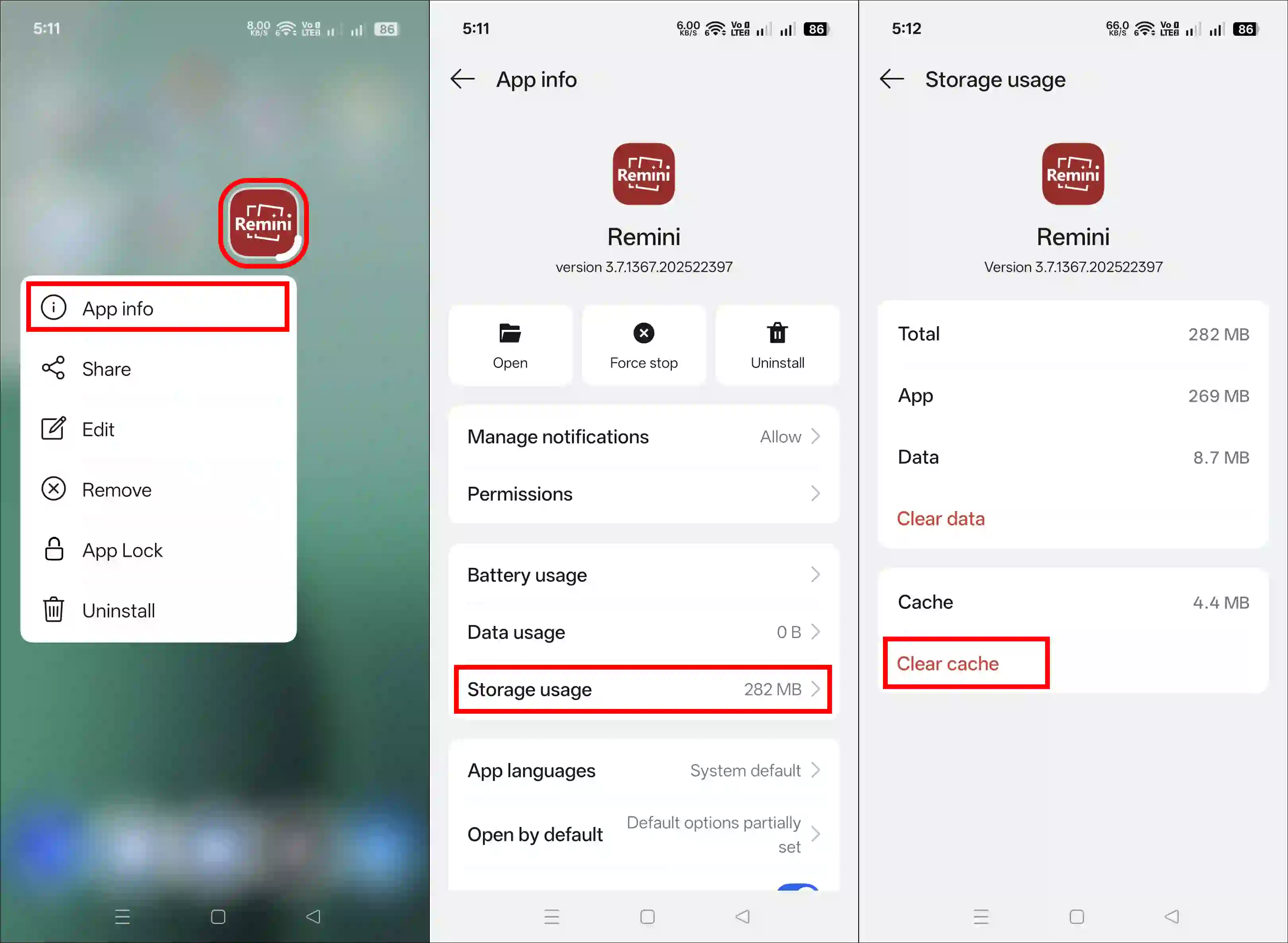
Fix 3. Clear Remini App Cache (Android)
- Tap & Hold Remini App Icon and Tap on App Info.
- Tap on Storage Usage.
- Tap on Clear Cache.
Fix 4. Offload the Remini App (iPhone)
If you’re an iPhone user, unfortunately, there’s no option to clear the cache of the Remini app. However, you can remove outdated data by offloading the app. To do this, go to Settings > iPhone Storage > Remini > Offload App > Confirm by Tapping Offload App > Then, Reinstall the App.
Fix 5. Update Your Remini App
Make sure you have the latest version of the Remini app on your Android or iPhone. Using an outdated version can lead to unexpected error messages. To fix these issues, update the Remini app from the Google Play Store or Apple App Store.
Fix 6. Uninstall and Reinstall the Remini App
If you’ve followed all the steps above but the Remini app is still showing the error message, the last option is to uninstall and reinstall the app. To do this, uninstall the Remini app from your phone and then reinstall it from the Play Store or App Store.
I hope you found this article quite helpful and fixed the Remini “Opps! Something Went Wrong” problem. If you are still facing this problem, then let us know by commenting below. Please share this article.


Remini internet problem
Nahin Ho Pa Raha Hai Mili mein photo ko clean karne ke liye
Oops! Something went wrong
Please check your internet
connection and try again later.
OK, Got It
Please solve this problem
Someting went wrong
remini oops techy snoop
Hii
I love Ramini
I have remini problem
Hlo
Which is better re