Bato.to Switched to Bato.si, But Manga Readers Can’t Access It
Bato.to was a popular online manga reader website. However, it had been facing legal challenges for some time. Following these legal challenges, the manga platform Bato.to has shut down. The Twitter account ‘@MangaAlerts‘ confirmed this news.
According to some Reddit posts, the Bato site relaunched with the Bato.si domain after the shutdown of the Bato.to site. Although the New Bato website was live for some time, users are now unable to access it.
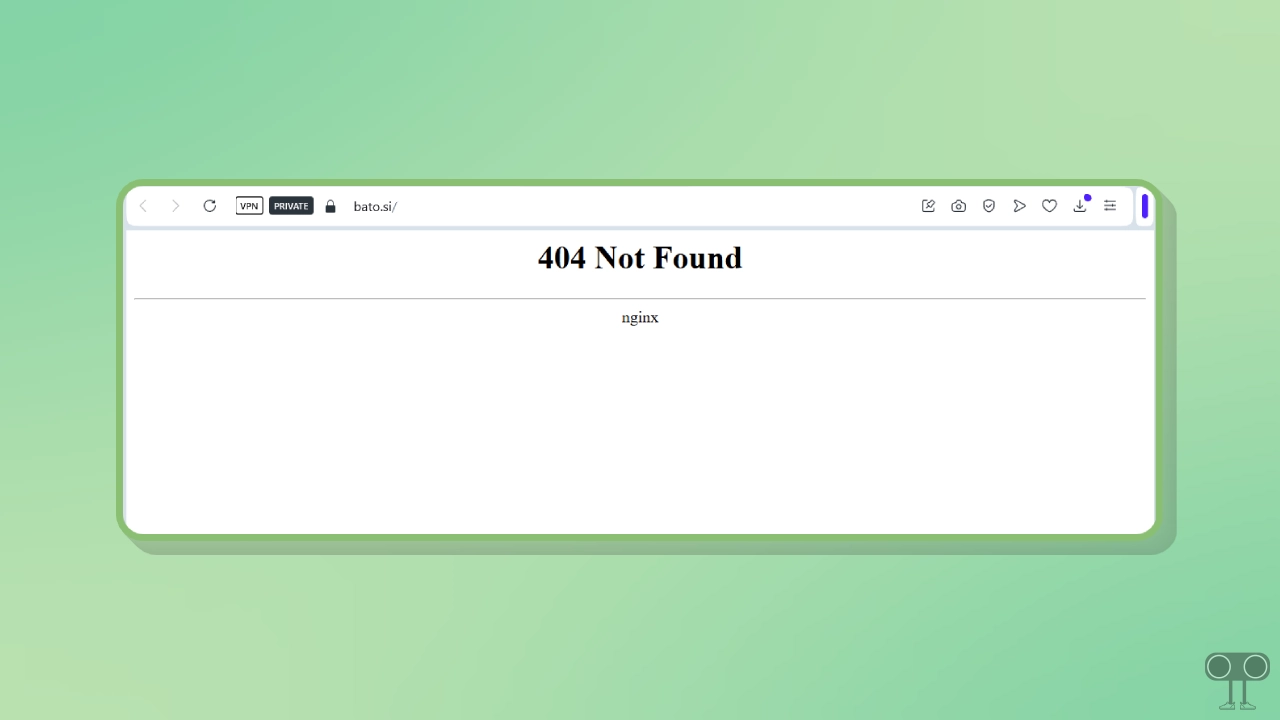
Users realized that Bato.si had also likely shut down, just like Bato.to, and therefore they started searching on Google for Bato mirror links to find a new Bato website. Currently, opening the Bato.si domain in any web browser displays a “404 Not Found” and “Page Not Found” error.
Why is Bato.si not working? If the Bato.si website is not opening or loading in your browser and you are seeing error messages on the screen, the most likely reason is a legal copyright strike. The Bato website has been facing legal challenges related to manga content for some time now.
Temporary Troubleshooting You Can Try
1. Check Your Internet Connection
To access the Bato.si website through a browser, the Internet is required. If your device’s internet connection is poor or not working at all, Bato pages will not load.
In this situation, you can switch your internet to strong Wi-Fi. Or instead you can use mobile internet. You can test your internet speed to see whether the internet is fast or slow.
2. Refresh the Page
Sometimes, despite having a strong internet connection, the Bato.si or its pages or images do not load properly. For this, you need to refresh the page in the browser.
To refresh the page in the browser, you have to press the CTRL + R shortcut on the keyboard. Now your page will load properly, and you will be able to access the Bato site.
3. Clear Your Browser Cache
Browsers constantly accumulate cache files, which, if corrupted, can prevent websites from loading properly. However, this issue can be resolved by clearing the corrupted cache files on web browsers like Chrome, Firefox, Edge, Opera, Brave, etc.
To clear Chrome browser cache on desktop:
- Open Chrome Browser on Laptop or Computer.
- Now Press CTRL + SHIFT + DELETE Simultaneously.
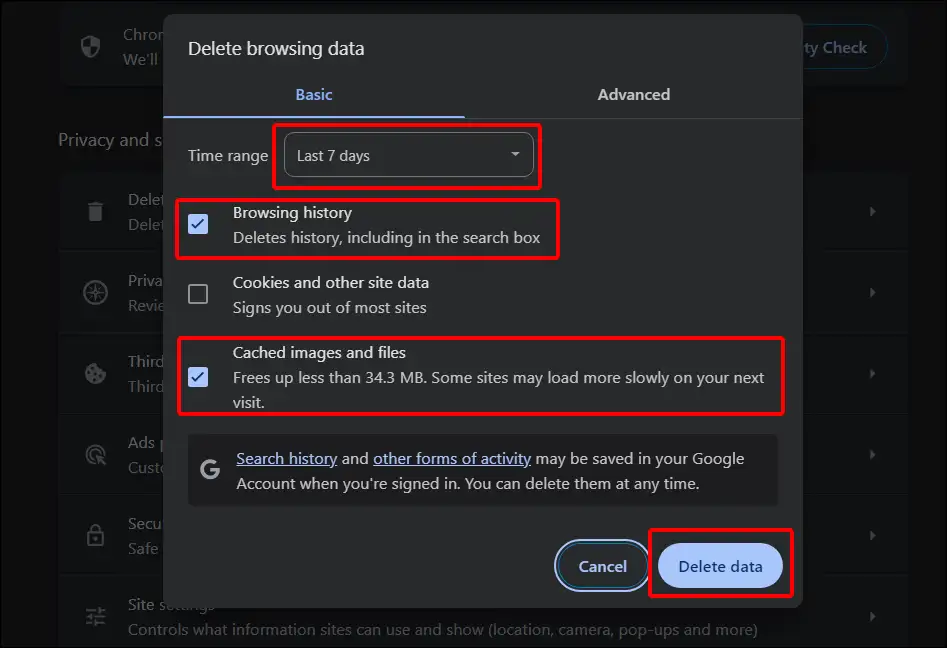
- Now Select Time range, Tick the Browsing History Box and Tick the Cached Images and Files Box. Now Tap on Delete Data.
4. Flush DNS (On Windows)
Flushing the DNS clears your computer’s temporary website addresses (DNS cache), which can resolve connectivity issues. This method is particularly helpful when you’re having trouble accessing a website.
To flush DNS in Windows 10/11, open Command Prompt as an administrator, type ipconfig /flushdns, and press Enter.
Disclaimer: This article is for informational purposes only. The mentioned fixes are based on common user reports, and we do not promote any piracy.