
How to Install Photopea on PC or Laptop (Windows 11/10)
If you’re passionate about photo editing, you’ve probably heard of Photopea at some point, and you may have even used it. This is a fantastic online photo editing tool that works like Adobe Photoshop, or you could say it’s essentially the web version of Photoshop. Many users prefer to install it on their Windows PCs or laptops rather than using it in a browser.
Officially, Photopea does not have a desktop version, which is why it is also not available on the Microsoft Store. Currently, it only runs through a website (Photopea.com). But don’t worry! In this post, I have explained some simple methods that will help you use Photopea on your Windows PC just like regular software, so you won’t need to open its website again and again.
3 Ways to Install Photopea as an App on PC or Laptop (Windows 11/10/8/7)
To install Photopea as an application on a Windows PC, we will utilize the browser’s PWA (Progressive Web App) technology. This allows you to install any website as a software application.
1. Install Photopea App from Chrome
Chrome is Google’s official browser, which comes with built-in Progressive Web App technology. With the help of the steps mentioned below, you can easily install the Photopea website on your computer. This is an easy way to turn any online website into software.
To install Photopea app on your Windows 11 or 10 using Google chrome:
Step 1. Open Google Chrome Browser and Visit Photopea Website.
Step 2. Click on Three Dots (⋮) at Top Right and Navigate to ‘Cast, Save and Share’ > ‘Install Photopea…’.

Step 3. Click on Install.

2. Install Photopea App from Microsoft Edge
Just like the Chrome browser, Microsoft Edge also supports Progressive Web App (PWA) technology. However, compared to Chrome, its implementation in Edge may differ slightly. However, you can also easily install Photopea with the help of Edge.
Step 1. Open Microsoft Edge Browser on Your PC and Visit Photopea Website.
Step 2. Click on Three Dots (•••) at Top Right and Navigate to ‘More Tools’ > ‘Apps’ > ‘Install Photopea’.
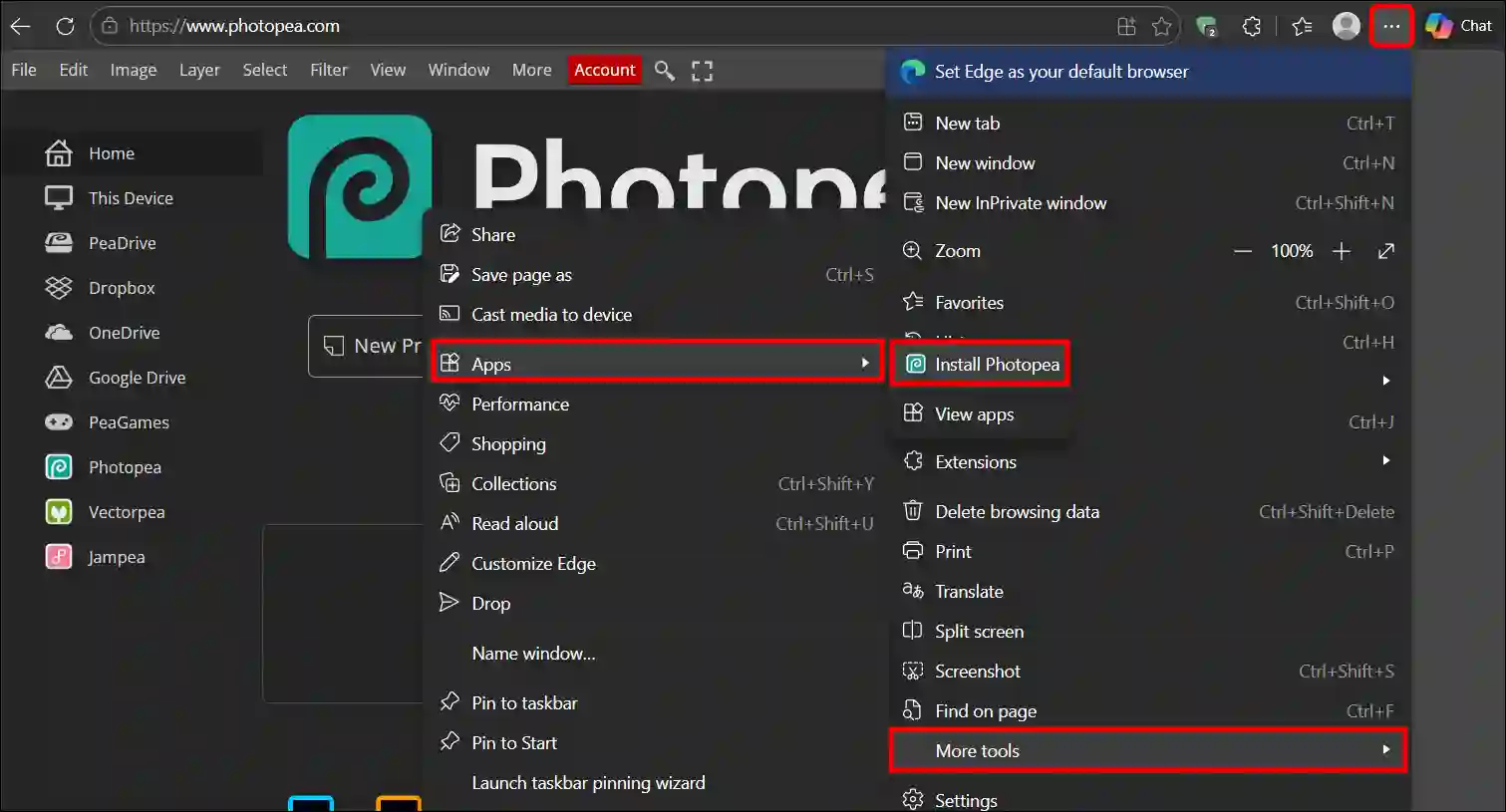
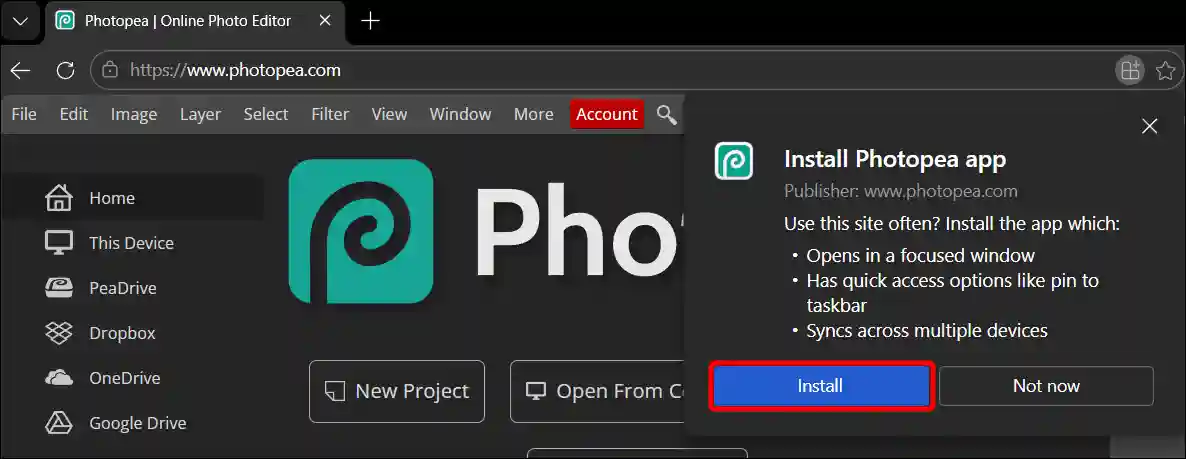
Step 3. Click on the Install Button.
3. Install Photopea App from Firefox
Mozilla has introduced a web app installation feature in Firefox version 143. So, if you are using Firefox version 143 or later, you can easily install Photopea. After installation, Photopea will appear on your Windows taskbar.
Step 1. Launch Firefox Browser and Open Photopea.com Website.
Step 2. Click the Web Apps Button That Appears in the Address Bar.
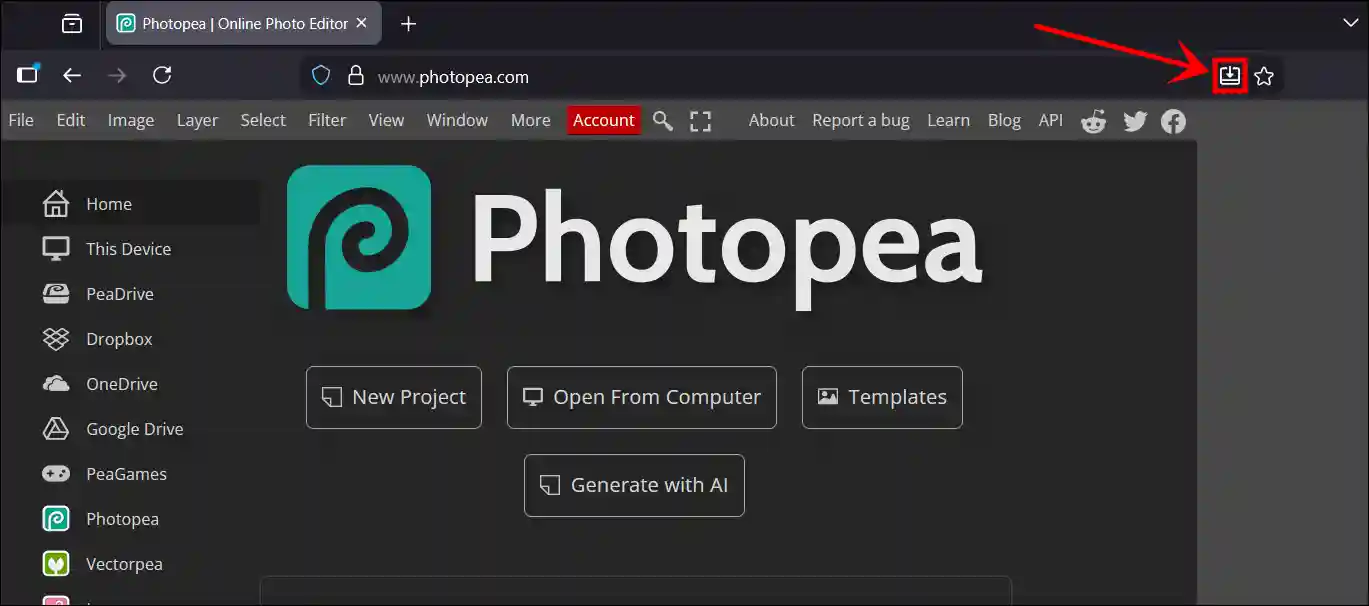
Step 3. Now, Firefox will Install Photopea, and It will Appear in Your Windows Taskbar.
Also read: Install and Use Claude AI Extension on Chrome
How to Uninstall Photopea on Windows 11
If you installed Photopea as an app using the methods provided above but now wish to uninstall it for any reason, you can easily do so. You just need to go to Windows Settings, then navigate to the “Installed Apps” section and uninstall it.
Steps to uninstall Photopea application from Windows pc:
Step 1: Press Windows + I Keys Simultaneously to Open Settings.
Step 2: Click on Apps > Installed Apps.
Step 3: Find Photopea App. Click on Three Dots (•••) > Uninstall.
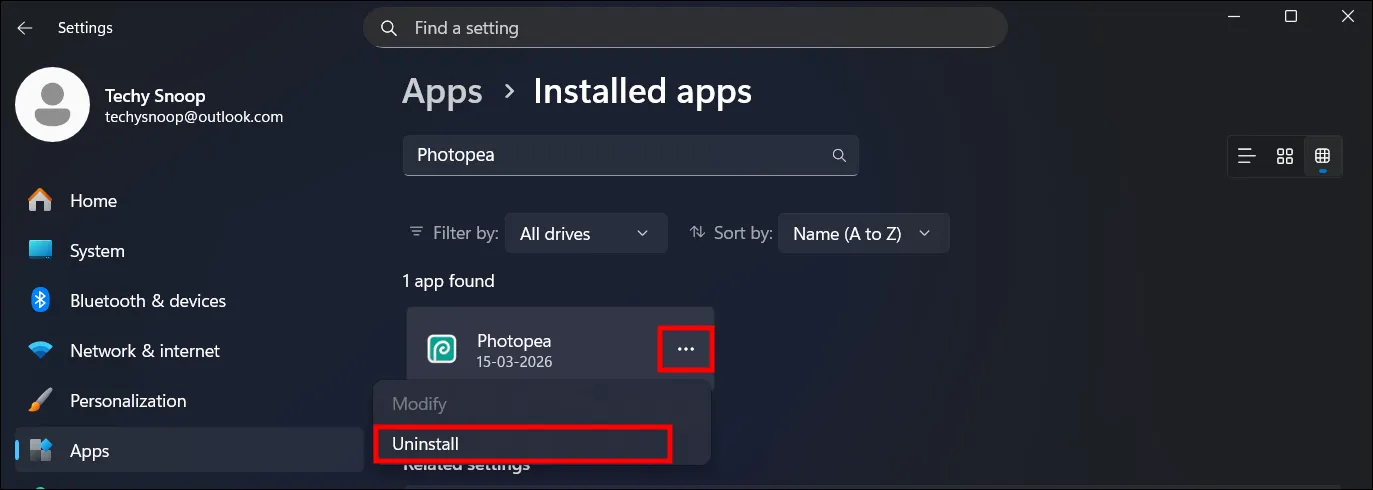
Step 4: Click on Uninstall to Confirm.
That’s All…
Also read: Remove Bing from Firefox on Windows 11/10
Fix Install Photopea Greyed Out
If the “Install Photopea” option is greyed out in your browser, there could be several reasons for this, such as the app already being installed, an issue with the browser itself, or a browser extension causing the installation option to be disabled.
To fix this, you can follow some of the methods listed below.
- Temporarily Disable Ad Blockers.
- Try Different Browsers (Chromium-based browsers).
I hope you found this article helpful and that you’ve learned how to install Photopea on PC. If you have any problems or questions related to Windows, please let us know in the comments below. Don’t forget to share this article with your friends.


Thanks.
Installing Photopea on Windows 11 is a great free alternative to Photoshop.
Thanks for the clear Photopea installation guide on Windows 11/10.
I’ve been using Photopea in the browser, but the PWA method sounds perfect for a smoother desktop experience.