Chrome Says “Site Wants to Look for and Connect to Any Device on Your Local Network”
Have you noticed the “Website wants to look for and connect to any device on your local network” pop-up message in the Chrome browser on your computer, laptop, or Mac? If yes, you are not alone! Chrome shows users this message when they visit certain websites. The article below explains this pop-up message and its solutions.
Website Wants to Look for and Connect to Any Device on Your Local Network on Google Chrome
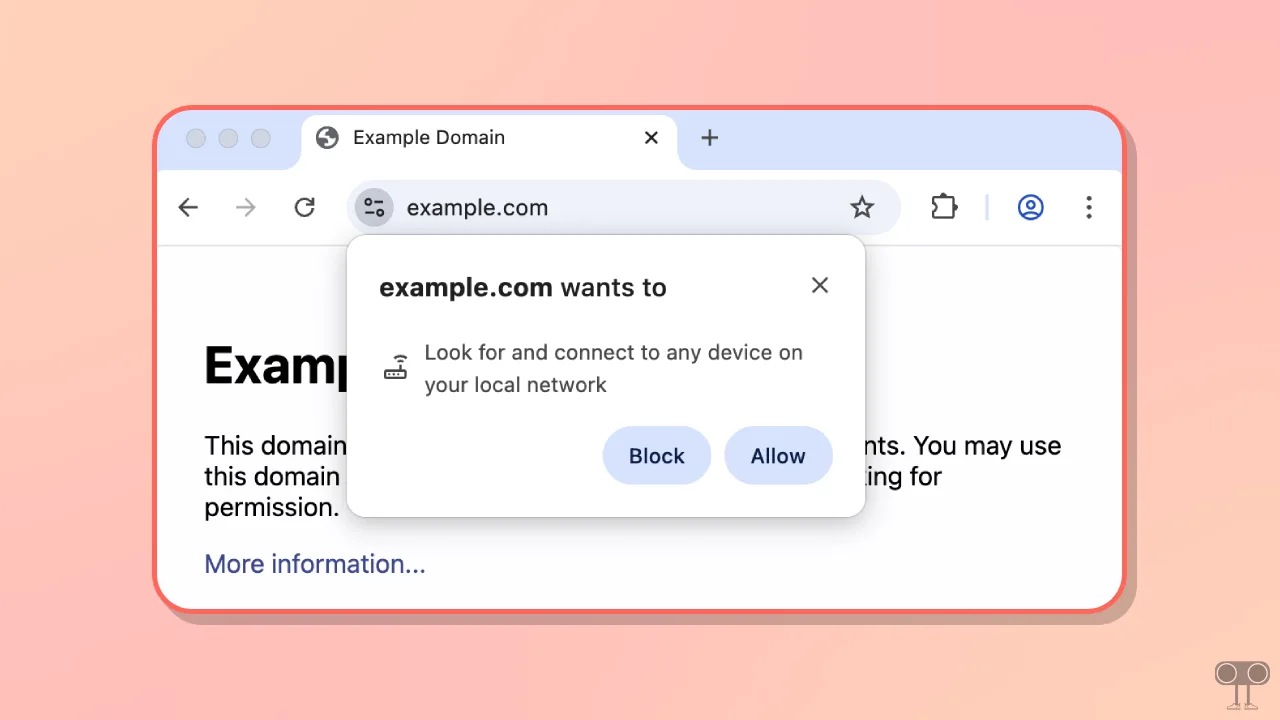
The Google Chrome browser displays this permission pop-up prompt due to its new “Local Network Access” feature. Google introduced this permission in Chrome 142, and it asks for user approval before websites can connect to devices on a local network.
When a pop-up prompt appears in your Chrome browser, it means that the specific website is trying to interact with a device connected to your local network. Chrome is now asking you to confirm whether or not you want to allow that website to access your local device.
To ensure this, you will see two options in the pop-up prompt: Allow and Block. Now it’s up to you whether you allow or block this local network access permission. However, it’s important to note that this message doesn’t necessarily mean the website is unsafe.
If you click “Allow,” you grant the website permission to communicate with necessary devices on your local network. If you click the “Block” option, Chrome will prevent that website from accessing devices connected to your local network.
How to Disable “Site Wants to Look for and Connect to Any Device on Your Local Network” Permission Prompt on Google Chrome
This feature is enabled by default in the Chrome browser, but you can modify and manage it according to your preferences using Chrome Flags. I have shared two different methods for this below.
Method 1. Using a Chrome Flags
If the Local Network Access request permission prompt in the Chrome browser is bothering you and you want to disable it, you can use Chrome flags to do so. Modifying this through Chrome flags will apply the setting globally, meaning the permission prompt will no longer appear on any website.
Step 1. Launch Your Chrome Browser on Your PC, Mac or Laptop.
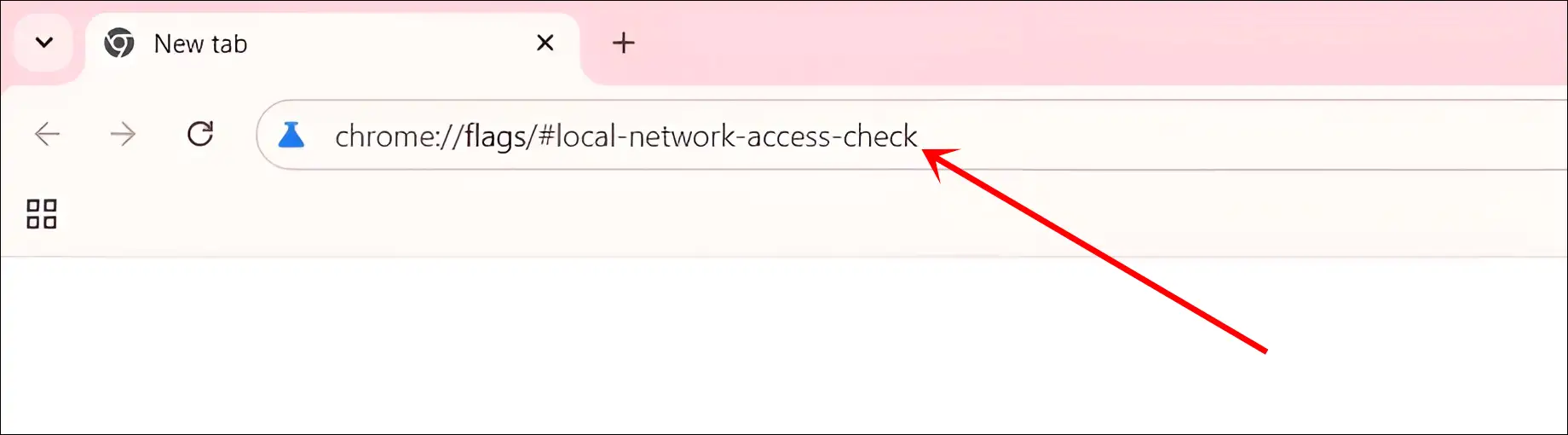
Step 2. Now Type the chrome://flags/#local-network-access-check and Hit Enter.
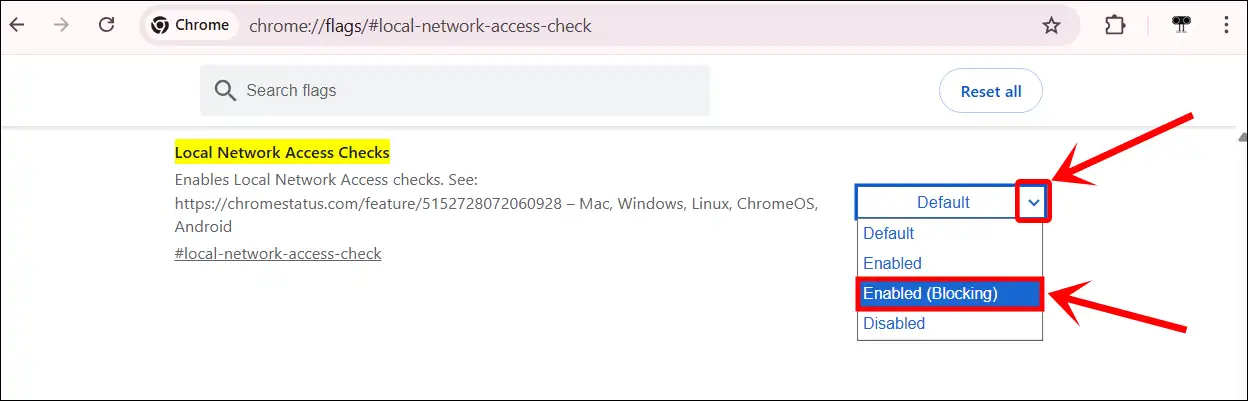
Step 3. Now, Click Click on Dropdown Arrow Next to “Local Network Access Checks” and Select Enabled Blocking Option.
Step 4. Now, Click on Relaunch Button at Bottom to Restart Your Chrome Browser.
Here, you will find four options in the dropdown: Default, Enabled, Enabled (Blocking), and Disabled. Their meanings are explained individually below.
- Default: This is the standard setting for Chrome flags, and if a flag is set to this value, Chrome will follow its default behavior.
- Enabled: If this option is selected, Chrome will check for local network access for all websites, and you will see a permission prompt if any website attempts to access the local network.
- Enabled (Blocking): This is a recommended flag setting if you want to disable local network access checking. This option is quite useful in high-security environments.
- Disabled: If you choose this option, Chrome will completely stop checking local network access requests. However, this is not recommended and may reduce security.
Related: How to Disable QUIC Protocol in Chrome, Edge and Firefox
Method 2. For a Specific Website
As mentioned, if you disable this using Chrome flags, it will be turned off for all websites. Although many users only want to disable it for certain specific websites, please note that this is also possible. Instead of for all websites, you can disable the local network access request check for just one website.
Step 1. Open That Website in Your Chrome Browser.
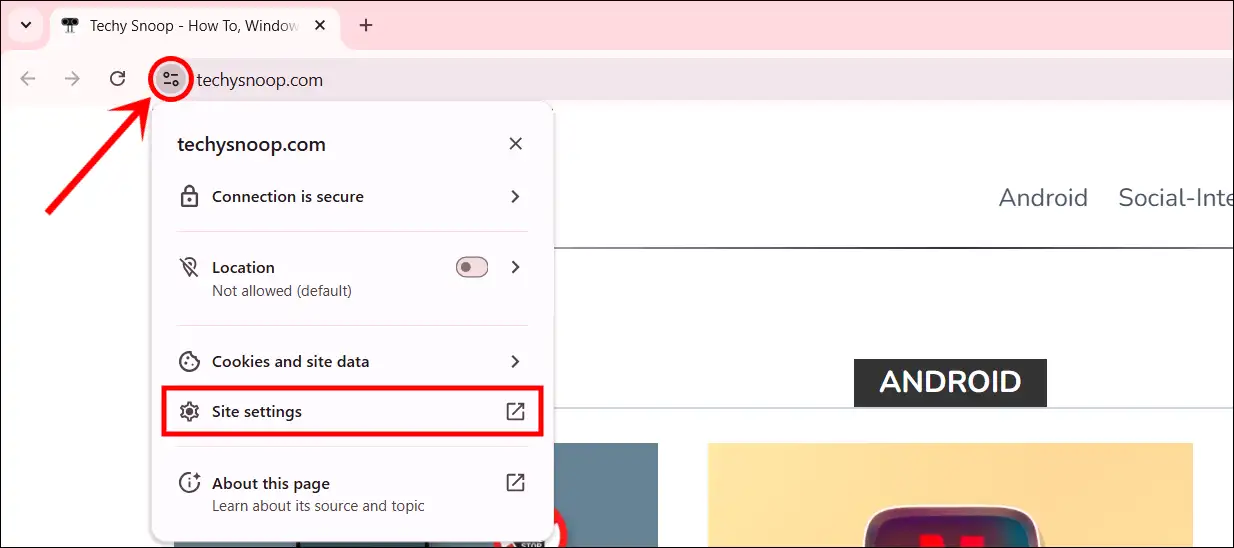
Step 2. Now, Click on View Site Permission Icon Just Before the Address Bar.
Step 3. Click on Site Settings.
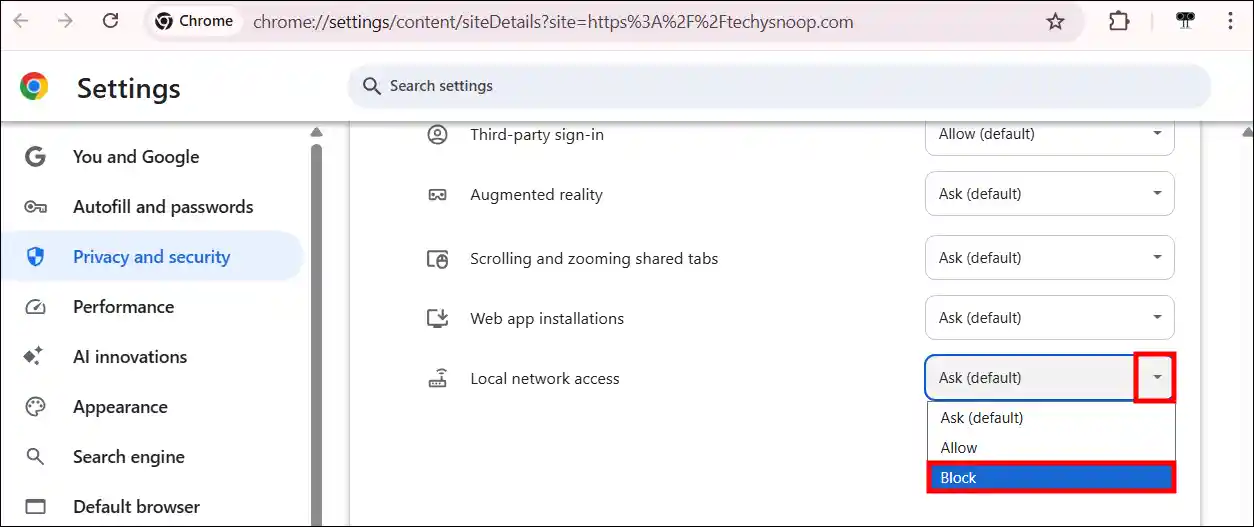
Step 4. Scroll Down and Select Block Option for Local Network Access.
That’s it! You’re all done…
Also read: How to Take Screenshots in Incognito Mode in Chrome & Firefox
FAQs
Q 1. Why is a website asking for local network access?
Answer – When a website on Chrome requests local network access permission, it means that Chrome is preventing malicious sites from scanning and attacking devices on your home network, such as printers, routers, and local applications.
Q 2. Should I allow or block local network access?
Answer – Now the question is whether you should allow or block this permission prompt from Chrome. Let me clarify that this is a security feature, so it is better to allow it. However, before selecting “Allow,” you should also check how trusted and safe the website is. If the website does not seem safe, block this permission immediately.
I hope you found this article helpful and learned about how the site wants to look for and connect to devices on your local network on Chrome. If you have any questions about Chrome, please ask them in the comments below. Feel free to share this article as well.