Enable or Disable AI Actions Context Menu in Windows 11
In this article, I’ll show you how to add or remove AI Actions in Windows 11’s context menu. Microsoft recently added the AI Actions option to File Explorer with a new update, which makes it easy to edit images and summarize documents.
You can trigger the AI Actions Context Menu in File Explorer by right-clicking on an image or document. However, you’ll need to enable or disable it using your Windows settings. It’s a fairly simple process, and the steps are detailed below.
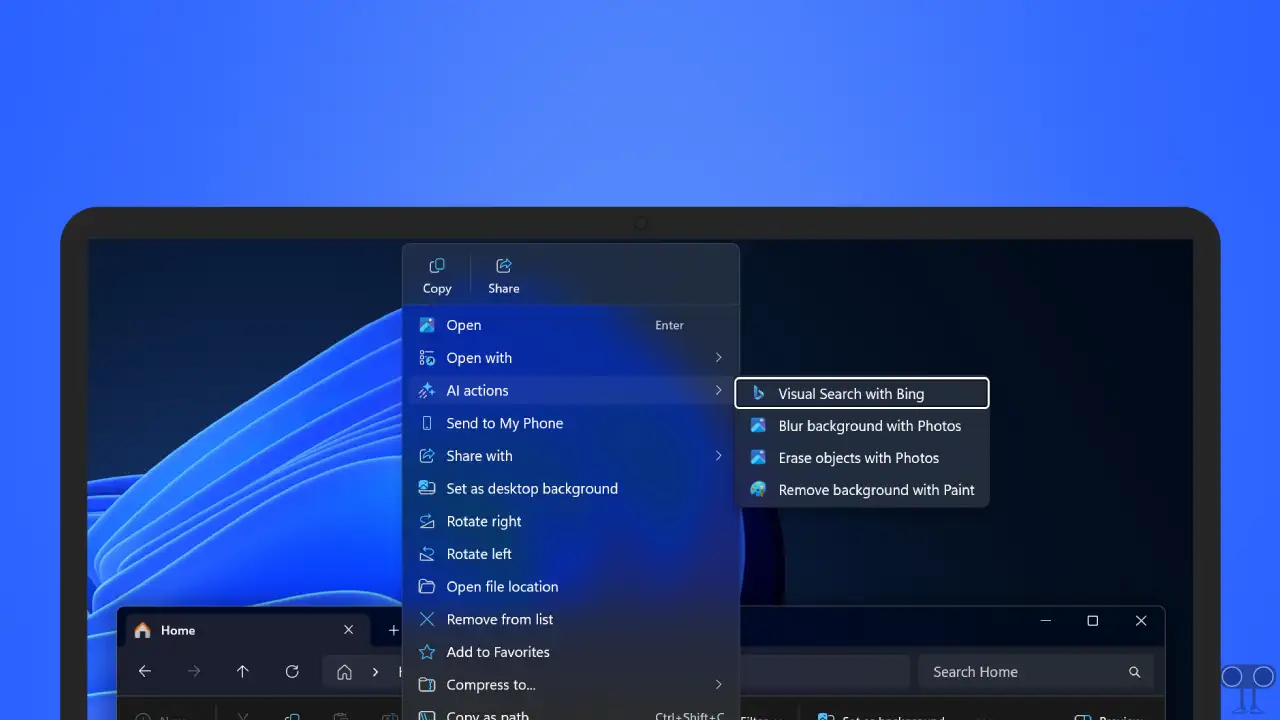
Note: Before following the steps mentioned below, make sure that your Windows 11 OS is updated to the latest version.
Enable or Disable AI Actions Context Menu in Windows 11
Step 1. Press Windows + I to Quickly Access Settings.
Step 2. Navigate to Apps > Actions.
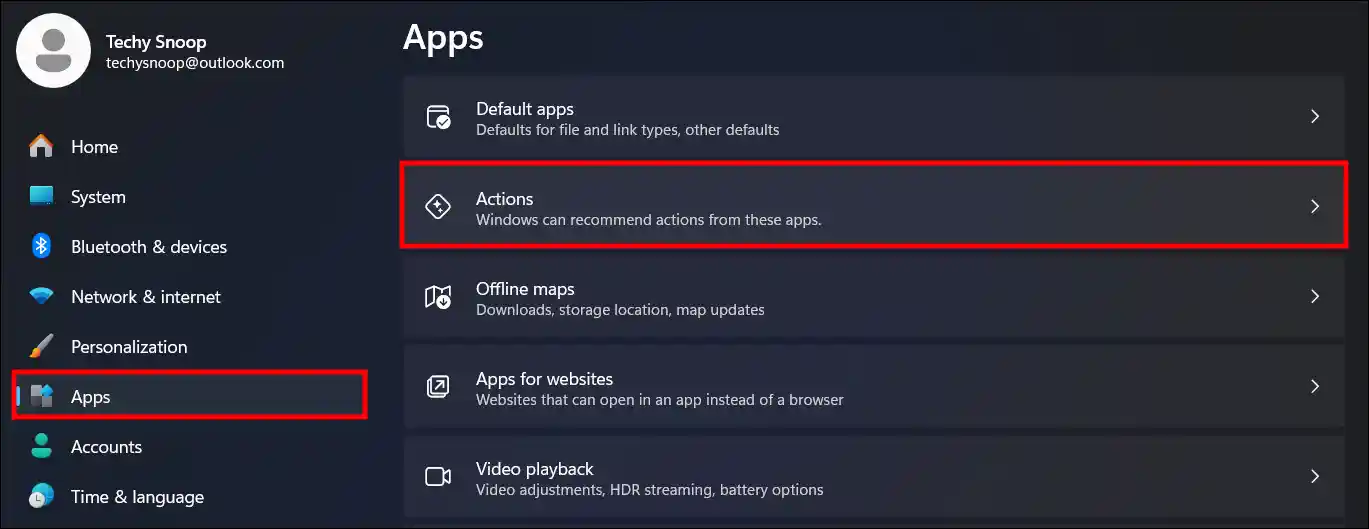
Step 3. Turn On All Available App Actions to Add the “AI Actions” Context Menu.
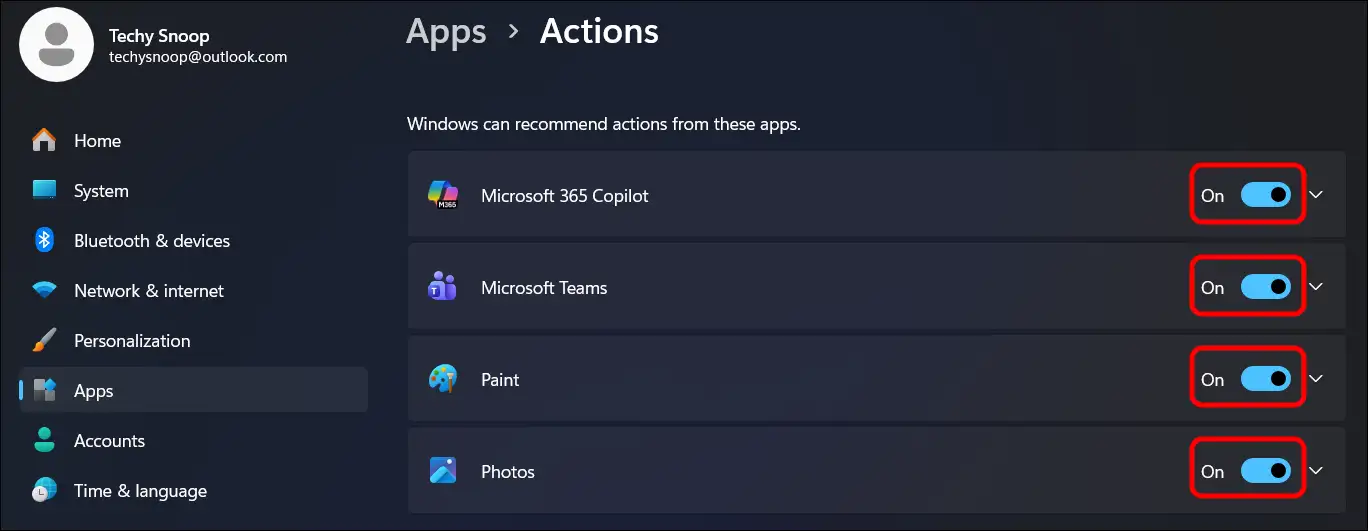
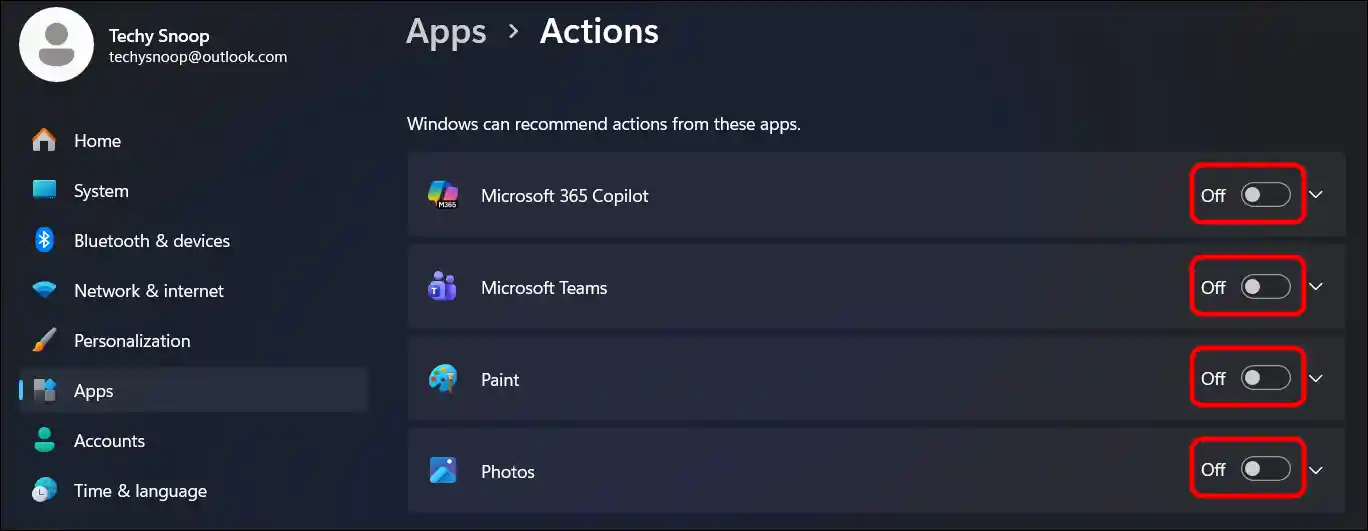
Step 4. Turn Off All Available App Actions to Remove the “AI Actions” Context Menu.
That’s all! You’re done…
You may also like:
- 4 Quick Ways to Check DirectX Version in Windows 11
- 3 Ways to Hide or Remove Recycle Bin from Desktop in Windows 11
I hope this article was helpful to you, and you learned how to enable or disable the AI Actions context menu in Windows 11. If you have any other questions about Windows 11, feel free to ask in the comments below. Don’t forget to share this article.

![Check Last System Boot Date and Time of Windows 11 [CMD, PowerShell, Task Manager, Event Viewer]](https://techysnoop.com/wp-content/uploads/2026/03/last-system-boot-date-time-windows-11-768x432.webp)