Google Phone’s “Keep Portrait Mode on Calls” is Here! Let’s Know How to Enable It?
Google has released a new update for its Phone app, introducing the “Keep Portrait Mode on Calls” feature. Unlike other Google apps, the Phone app doesn’t receive frequent updates, which is a good thing, as constant changes to a phone dialer app can be quite frustrating for users.
Google Phone’s New “Keep Portrait Mode on Calls” Mode
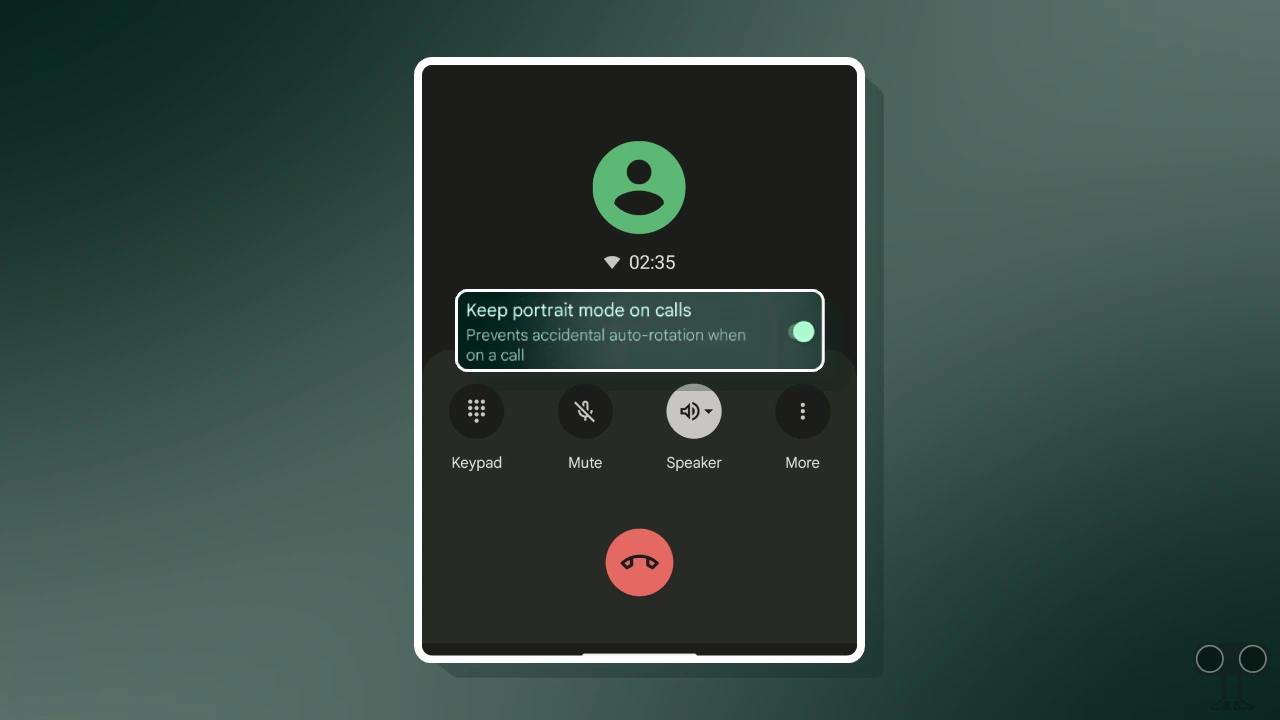
If your Android phone has the Google Phone app pre-installed, or if you use the Google Phone app as the default on other phones like Samsung, you may have noticed that during a call, your screen automatically rotates from portrait to landscape mode when you accidentally rotate the phone.
To prevent this problem, Google has added a new “Keep Portrait Mode on Calls” option to its Phone app. When enabled, your calling screen will remain in portrait mode throughout the call. Users have been waiting for this feature for a long time, and finally, Android users can enable it today.
How to Enable “Keep Portrait Mode on Calls” in Google Phone App on Android
If you want to stop your Android phone’s calling screen from accidentally rotating into landscape mode, you only need to activate the “Keep portrait mode” setting. For this, first go to the Google Play Store and update your Google Phone app to the very latest version. Then, follow the steps mentioned below one by one.
To turn on Google Phone’s Keep portrait mode setting:
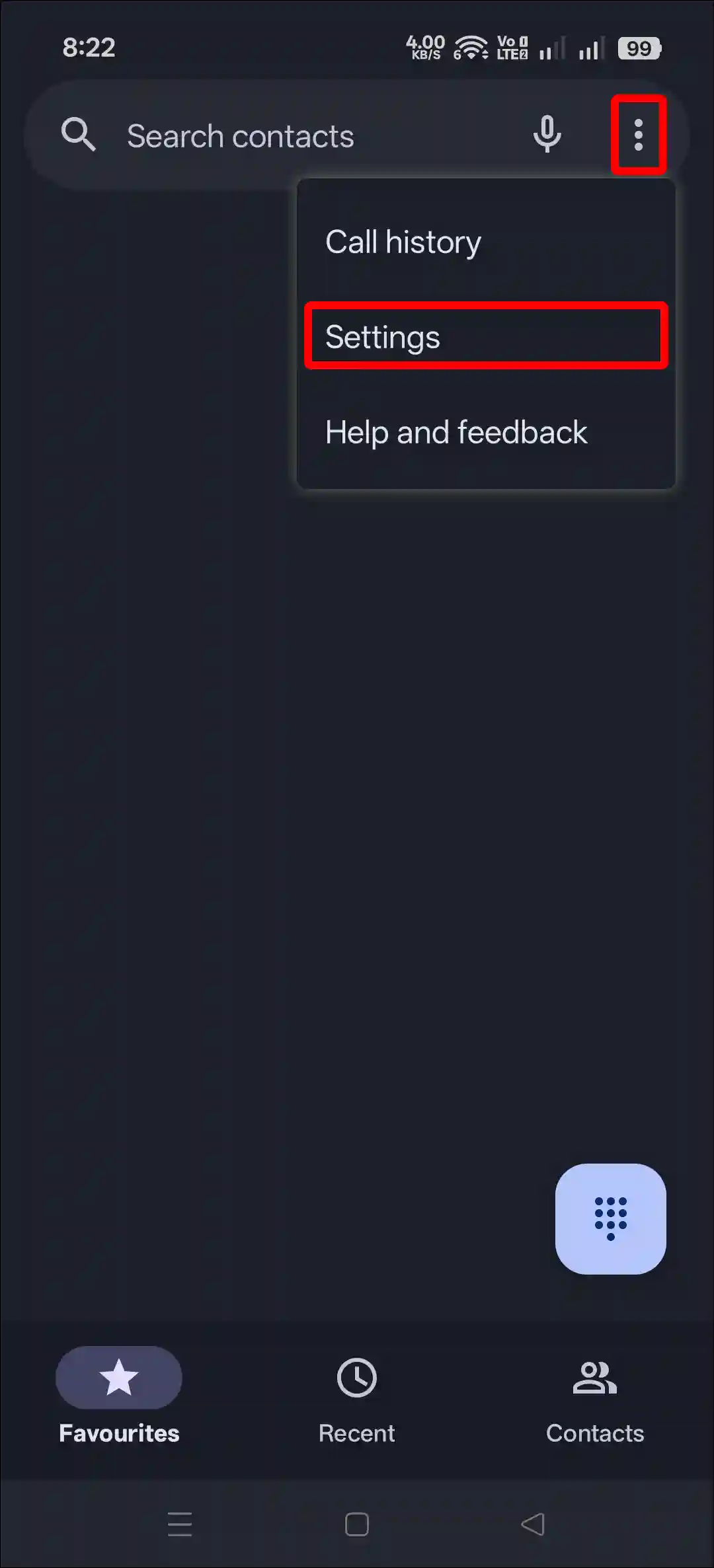
- Open Google Phone App on Your Mobile.
- Tap on Three ⁝ Dots at Top Right Corner and Select Settings.
- Tap on Display Options.
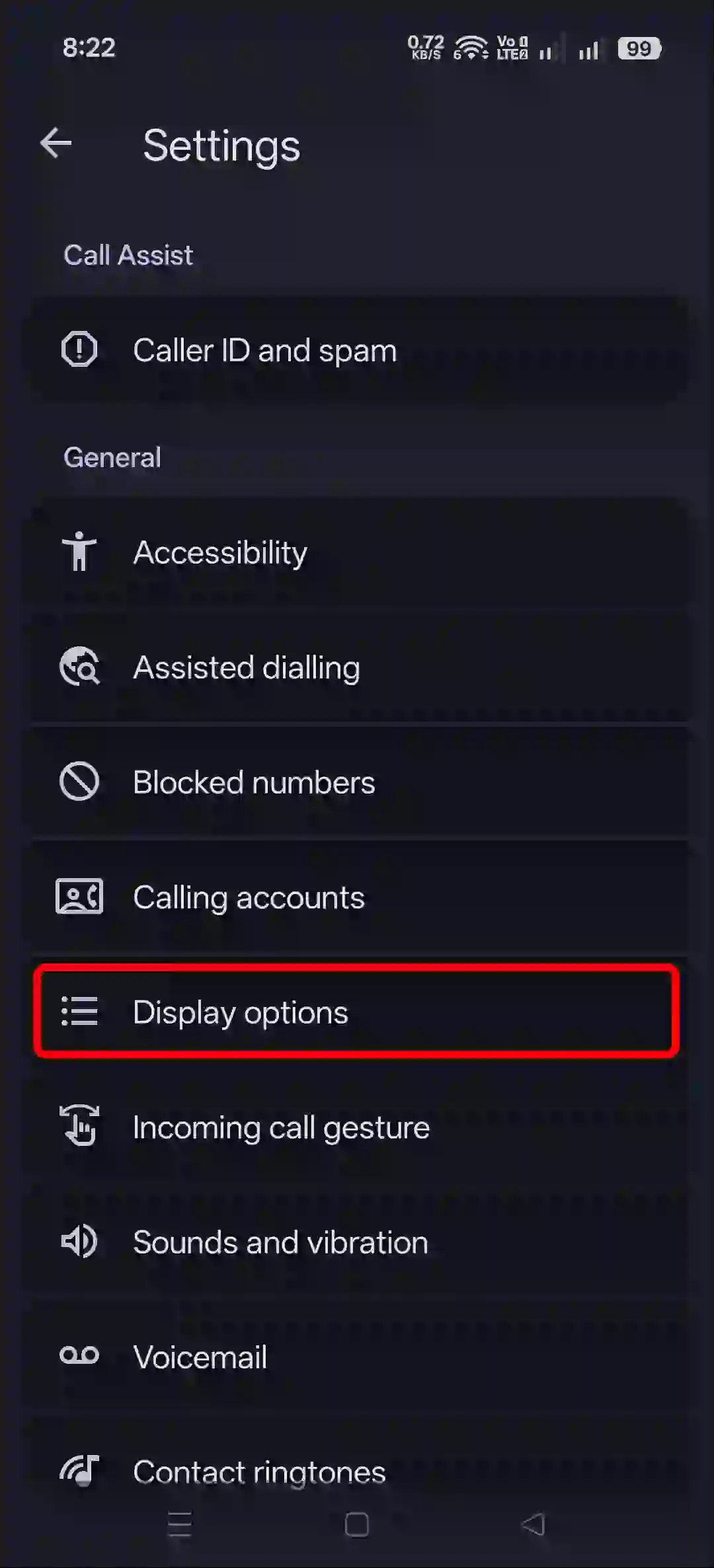
- Under the Control Section, Simply Turn On the “Keep Portrait Mode on Calls” Toggle.
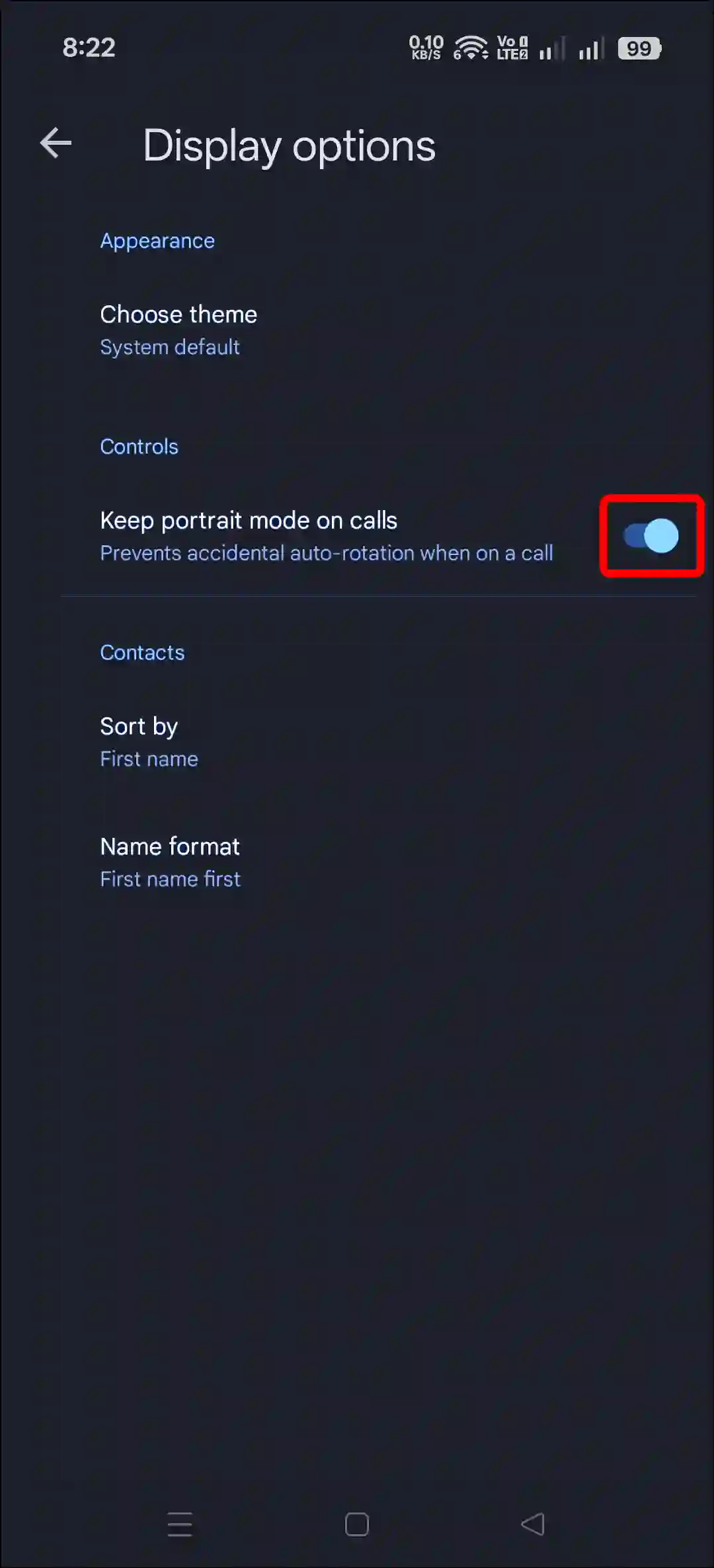
That’s it! You’re done. Now, even if you rotate your phone during a call, your call screen will not rotate and will remain fixed in portrait mode.
Additionally, if you want to temporarily disable this option for any reason, simply follow the same steps mentioned above and turn the toggle switch off.
Related: How to Turn On & Off AI Mode in Google Search
FAQs
Q 1. How do I keep the phone screen in portrait mode during a call?
Answer – To do this, open the Google Phone dialer app on your phone, tap the three ⁝ dots in the upper right corner, and select Settings. Now go to the Display options and turn on the “Keep Portrait Mode on Calls” option.
Q 2. Why is the “Keep Portrait Mode on Calls” option not showing in my Google phone app?
Answer – If the “Keep portrait mode” option is missing in your Google Phone app, don’t worry! You’re not alone. One of the main reasons is that the feature is currently in a rolling-out phase, so please wait a while. Keep updating your Google Phone app regularly and check whether you have received the option or not.
I hope you found this article helpful and learned how to enable Keep Portrait Mode on calls. If you have any questions related to Android, please ask in the comments below. Feel free to share this article as well.