
Here’s How I Turned Off Photo Comments on Instagram Posts and Reels
Instagram has recently released a photo comment feature for everyone. So now on Instagram, you can comment not just with text or GIFs but with pictures too, right on posts and Reels. Just as you can post photo comments on others’ posts, others can also post photo comments on your posts or Reels.
Getting annoyed because people keep spamming your reels with random photo comments? Don’t worry. Instagram also offers a setting to remove the gallery option from comments. By turning off this setting, you can hide the photo option in the comment section, preventing people from selecting or posting photos in comments.
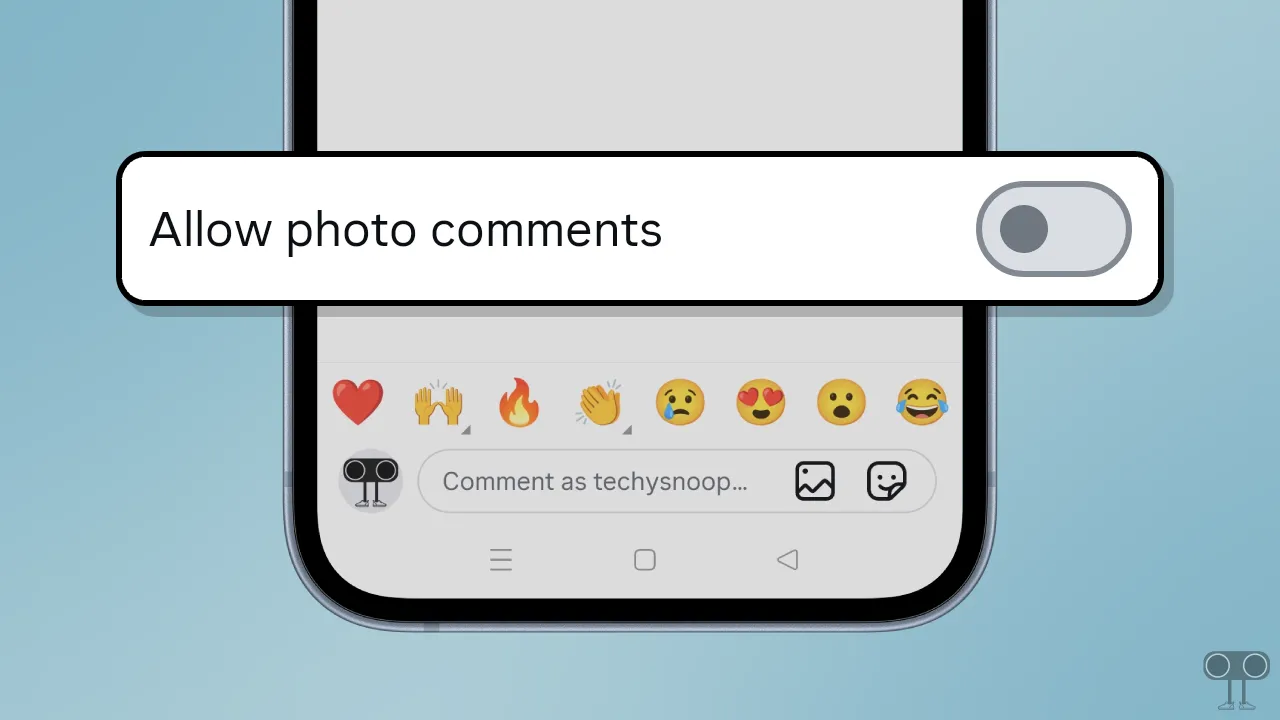
In this article, I have shared a step-by-step guide that will teach you how to disable the photo commenting feature on your Instagram posts and Reels. This method will protect your comment section from spam and keep it clean.
Here’s How I Turned Off Photo Comments on Instagram Posts and Reels
I was honestly tired of the photo comments too, and after a little research, I also found the option to turn this off for my posts and Reels. I’ve mentioned each step below with pictures showing how I turned it off.
To disable photo commenting on Instagram:
- Open Instagram App on Your Android or iPhone.
- Go to Your Profile and Tap on Three ≡ Lines at Top Right Corner.
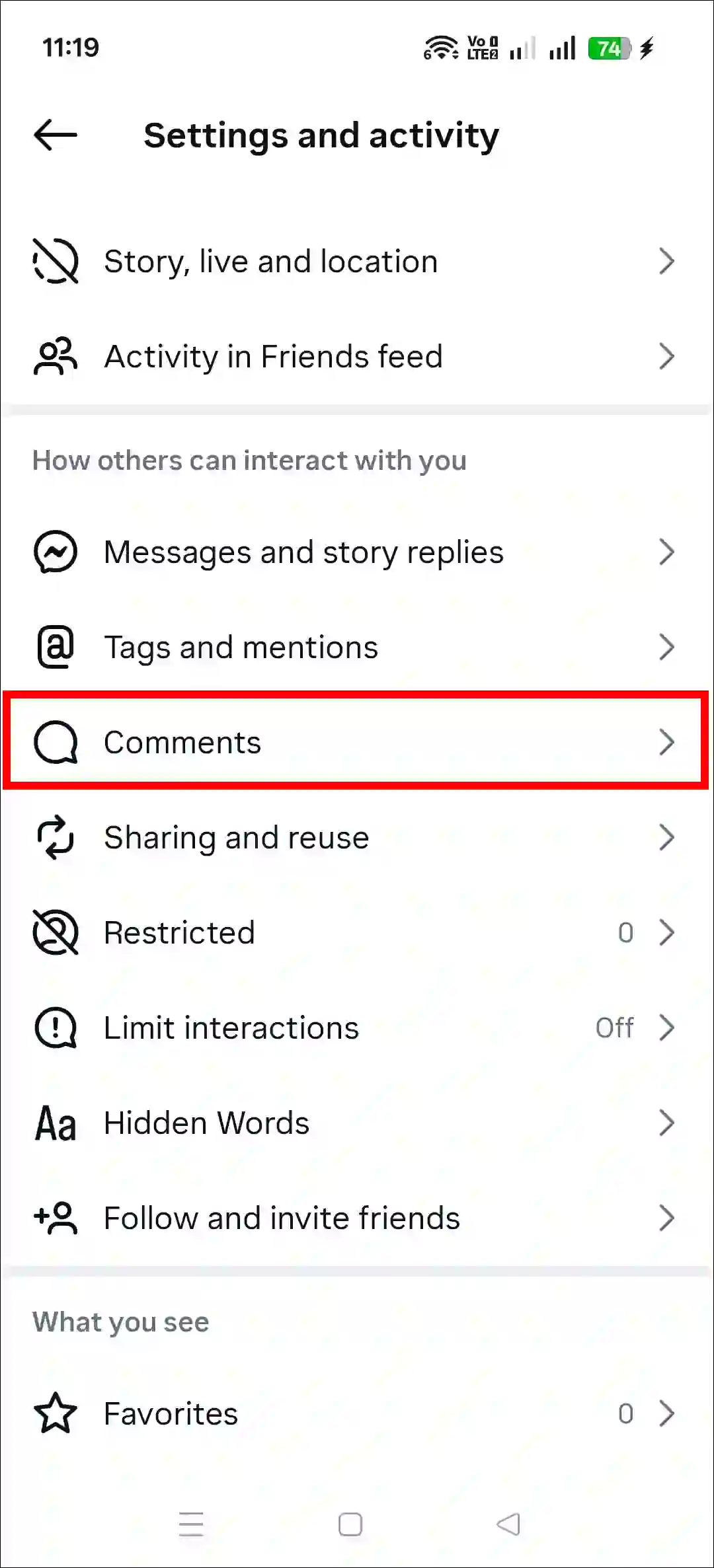
- Tap on Comments.
- Simply, Turn Off the “Allow Photo Comments” Toggle.
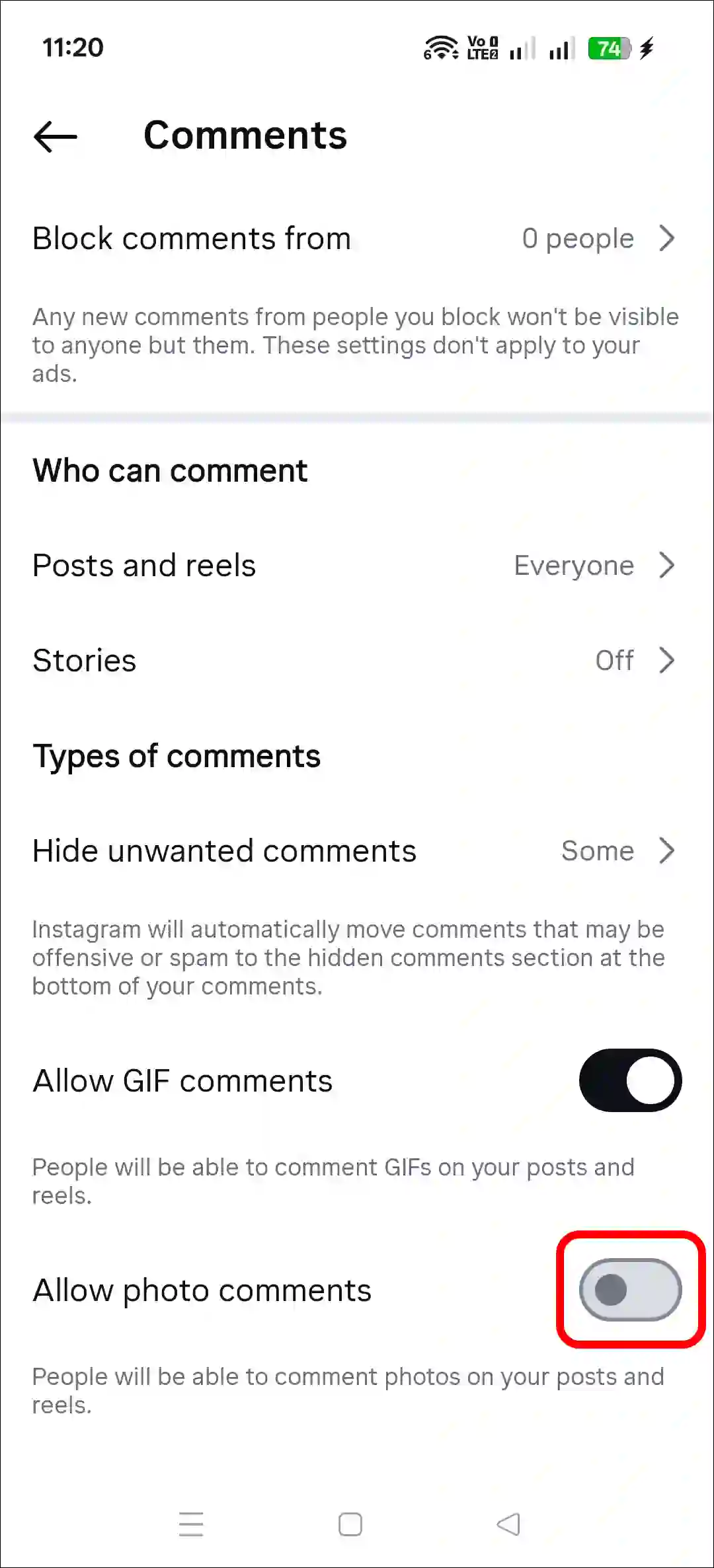
That’s it! Now, people won’t be able to comment with photos on your posts and Reels. The photo commenting feature has been disabled across all your posts and Reels. However, whenever you want, you can activate this option again by following these same steps.
Also read:
What To Do If ‘Allow Photo Comments’ Option is Not Showing Up?
To disable photo comments, the ‘Allow Photo Comments’ option must be available in your Instagram settings. If this option is missing from your settings, don’t worry! You can restore it and disable photo commenting by following the steps below.
1. Update Your Instagram App
Sometimes, certain settings go missing due to bugs or glitches in an outdated Instagram app. However, all the options reappear once you update the app to the latest version. You can update Instagram via the Google Play Store (for Android) or the Apple App Store (for iPhone).
2. Clear Instagram App Cache
- Tap and Hold Instagram Icon.
- Tap App Info.
- Tap Storage Usage.
- Tap Clear Cache.

Dear Instagram team
I am having a problem in comment section
Couldn’t post tap ta retry
Please solve this problem
Thank you
Comment problem
My like comment problem
Thanks