Stop Telegram from Streaming Videos and Audio Files
In this article, I have explained step-by-step how you can stop Telegram from streaming videos and audio files. This feature is called ‘streaming’, and it often annoys users. You simply need to go to the settings and disable it.
Telegram’s Streaming Feature
The Telegram app has a built-in streaming feature that, whenever possible, starts playing videos and music without waiting for the files to download completely. This feature is available not only on Android but also on the iPhone (iOS) version.
How Stop Telegram from Streaming Videos and Audio Files
If you do not want the Telegram app to play video or audio files without fully downloading them, this is possible. To do this, you need to turn off the “Streaming” toggle option in your Telegram settings. I’ve shown all the steps below with pictures.
To disable the streaming feature in the Telegram app:
- Open Telegram App on Your Android or iPhone.
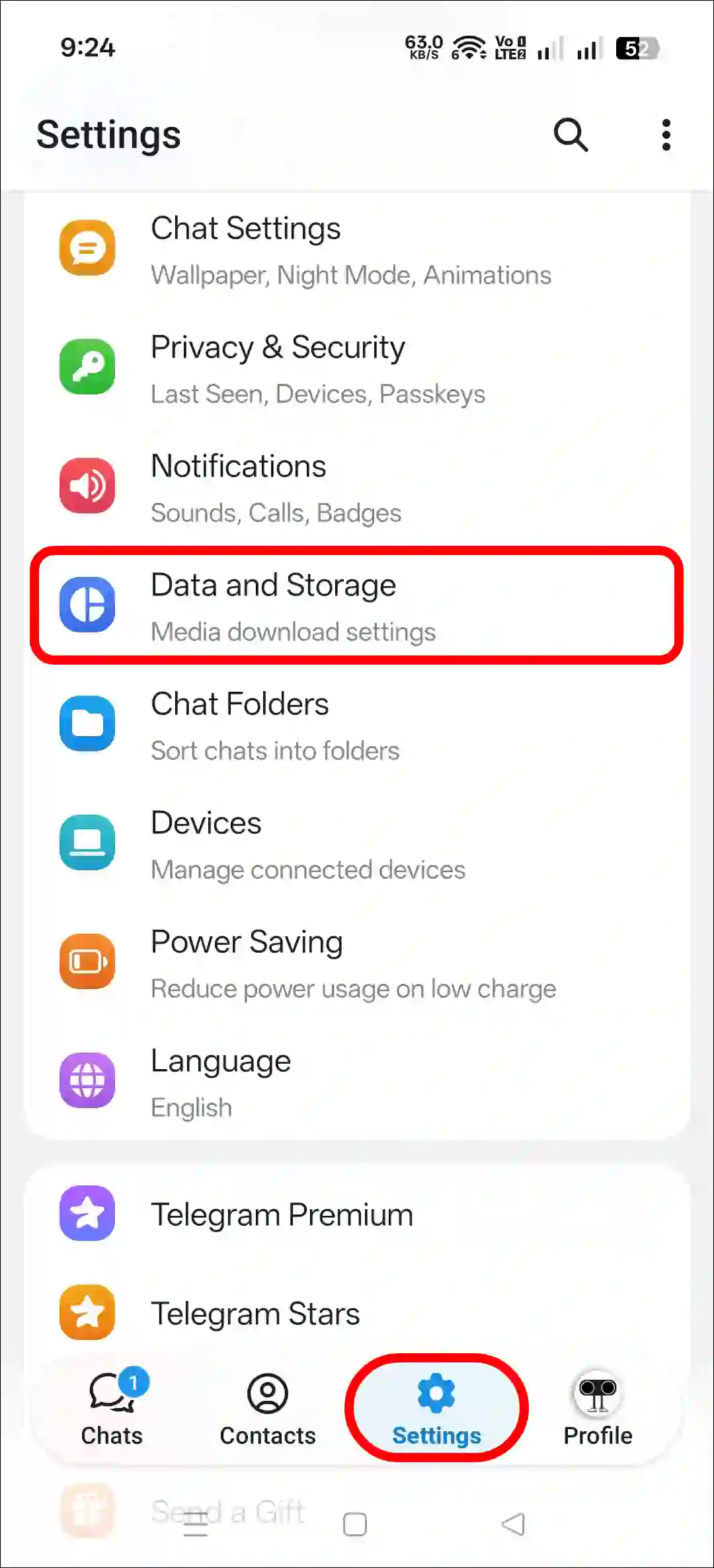
- Tap on Settings ⚙️ Icon at Bottom Floating Bar > Data and Storage.
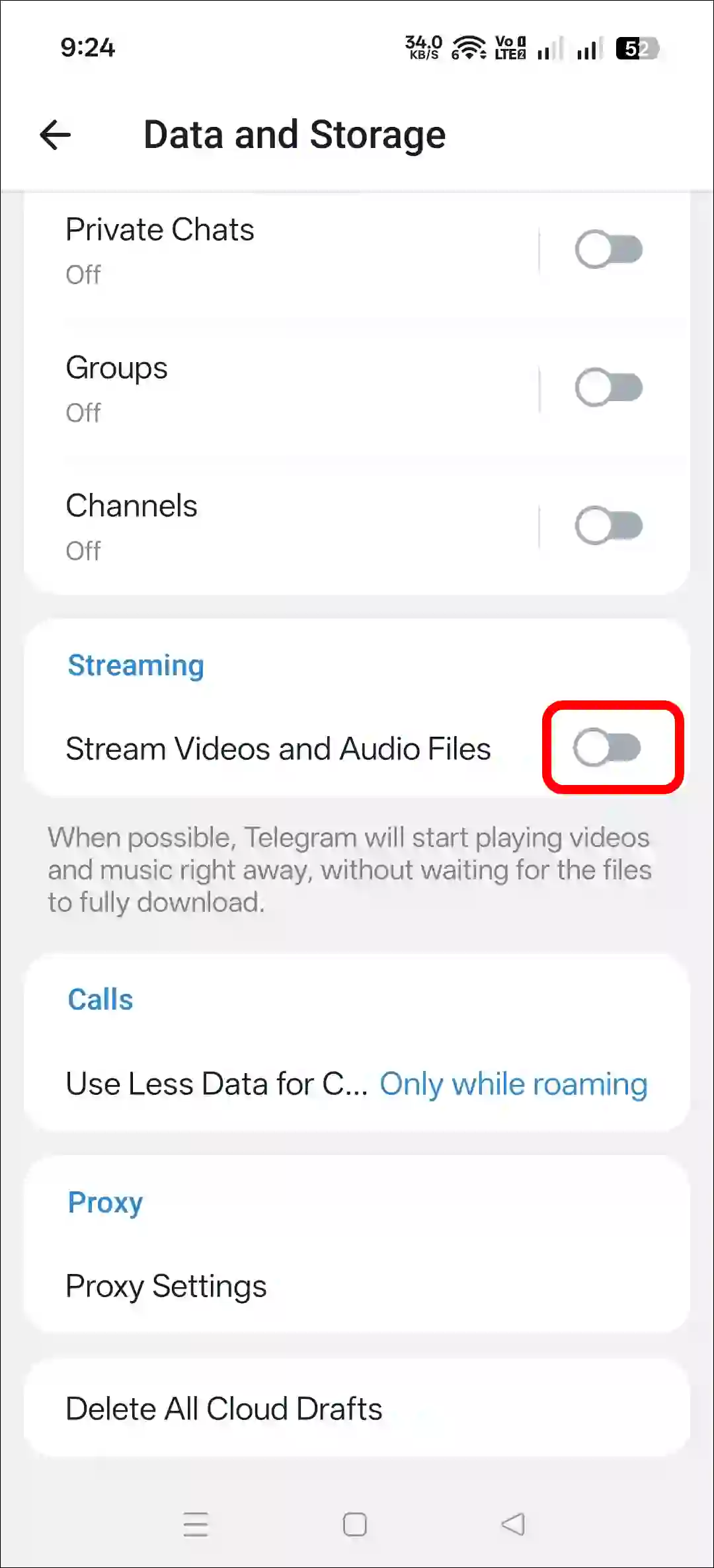
- Under the Streaming Section, Turn Off the “Stream Videos and Audio Files” Toggle.
- Now, Restart the Telegram App.
If you use the Telegram desktop app on Windows, Chromebook, Linux, or Mac, you won’t find a dedicated option for it like you do on the mobile app. However, you can turn off auto-downloads.
To do this, open the Telegram Web app, then click on the three ≡ lines and go to Settings. Next, navigate to the “Data and Storage” section and uncheck all auto-downloads. That’s it! You’re done.
That’s it! Now, videos or audio files in your Telegram will not play until they have fully downloaded, whether you download those files using mobile data or Wi-Fi.
Also read: Stop Telegram from Telling Me Who Joined