How to Turn Off Grok Auto Translate in X (Formerly Twitter)
The popular social media platform X (formerly Twitter) has rolled out an auto-translate feature that automatically translates posts into various languages. This feature aims to deliver the post to audiences worldwide in their own language. However, this auto-translate feature is bothering most users, and they want to get rid of it.
What is Auto-Translate on X App?
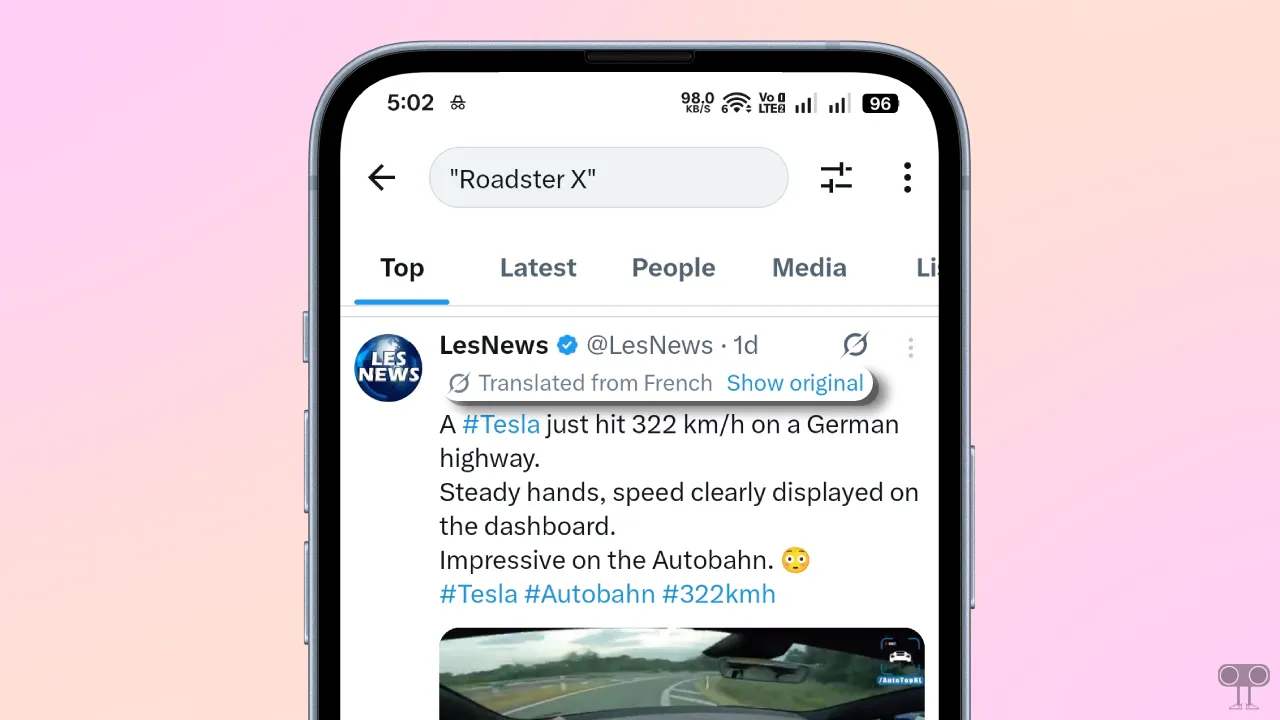
The auto-translate feature on the X app is a new automated translation service, powered by the Grok AI chatbot, designed to eliminate the need to manually click “Translate Post” on tweets in foreign languages.
Actually, following the new update, this auto-translate feature has automatically activated itself and is automatically translating posts in other languages. Are you also annoyed by this auto-translation and want to stop it? If so, then this article is for you.
2 Easy Ways to Turn Off Grok Auto Translate in X App (Formerly Twitter)
In this article, I have mentioned two methods that will teach you how to disable Grok Auto Translate in the X app. Before following these methods, ensure that you are using the latest version of the X app. You can follow these methods on both Android and iPhone.
1. Disable Via Tweet Settings (Best Method)
For any tweet where you see the “Translated from” label, you can disable this Grok Auto Translate mode directly from there. This is the simplest and best method to stop X’s Auto Translate feature. All the steps required to do this are listed below, one by one.
- Open X App on Your Phone.
- Find a Tweet That has been Automatically Translated.
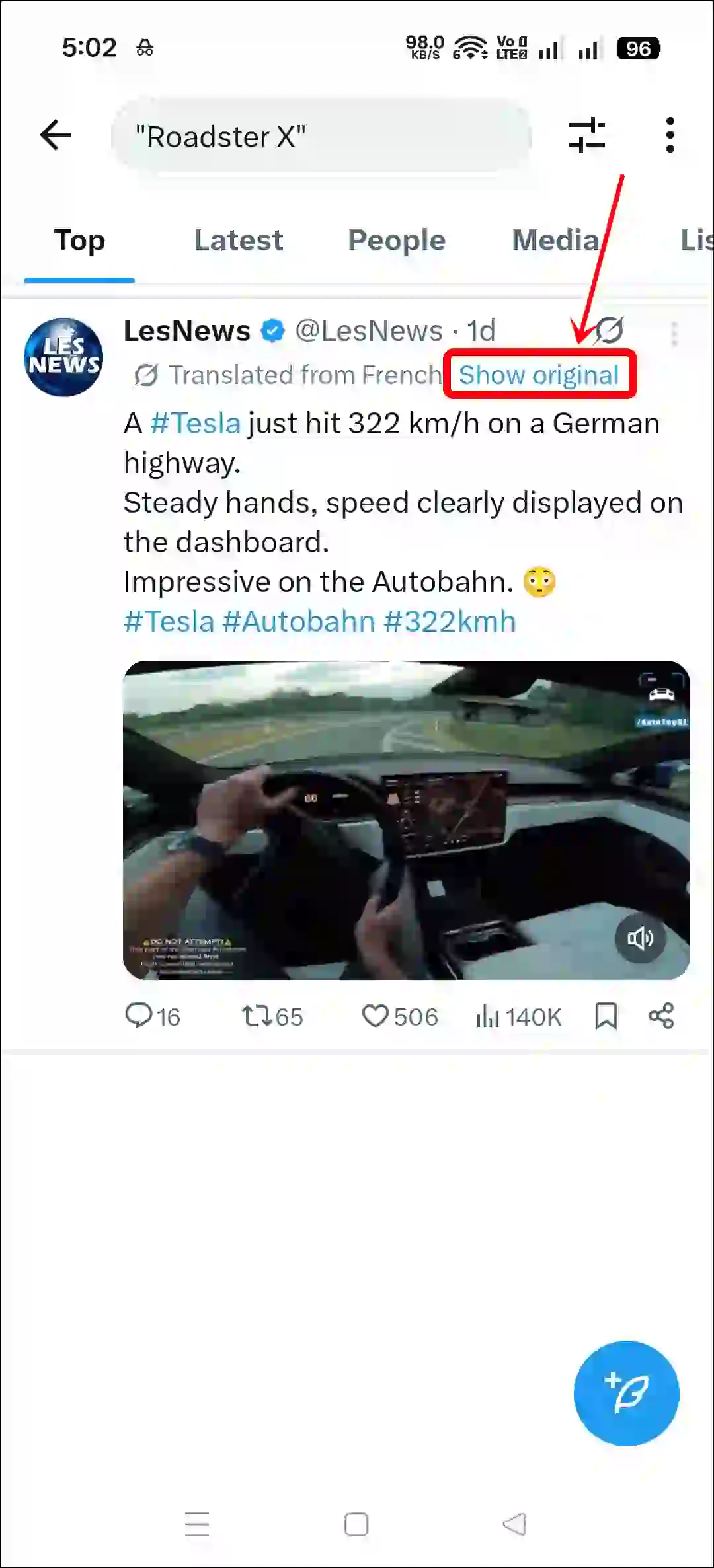
- Tap on “Show Original” Next to Translated by Grok.
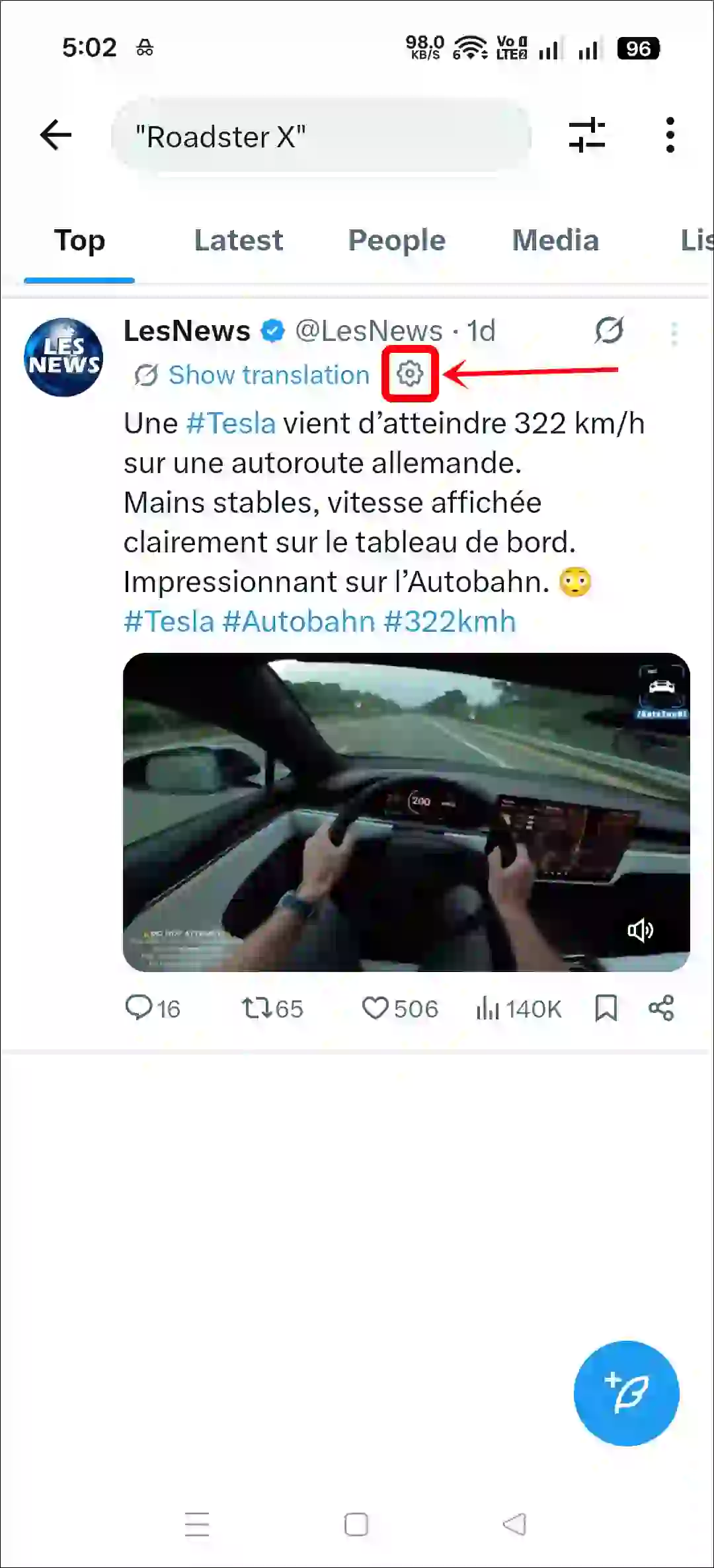
- Tap on Cogwheel ⚙️ Icon Next to Show Translation.
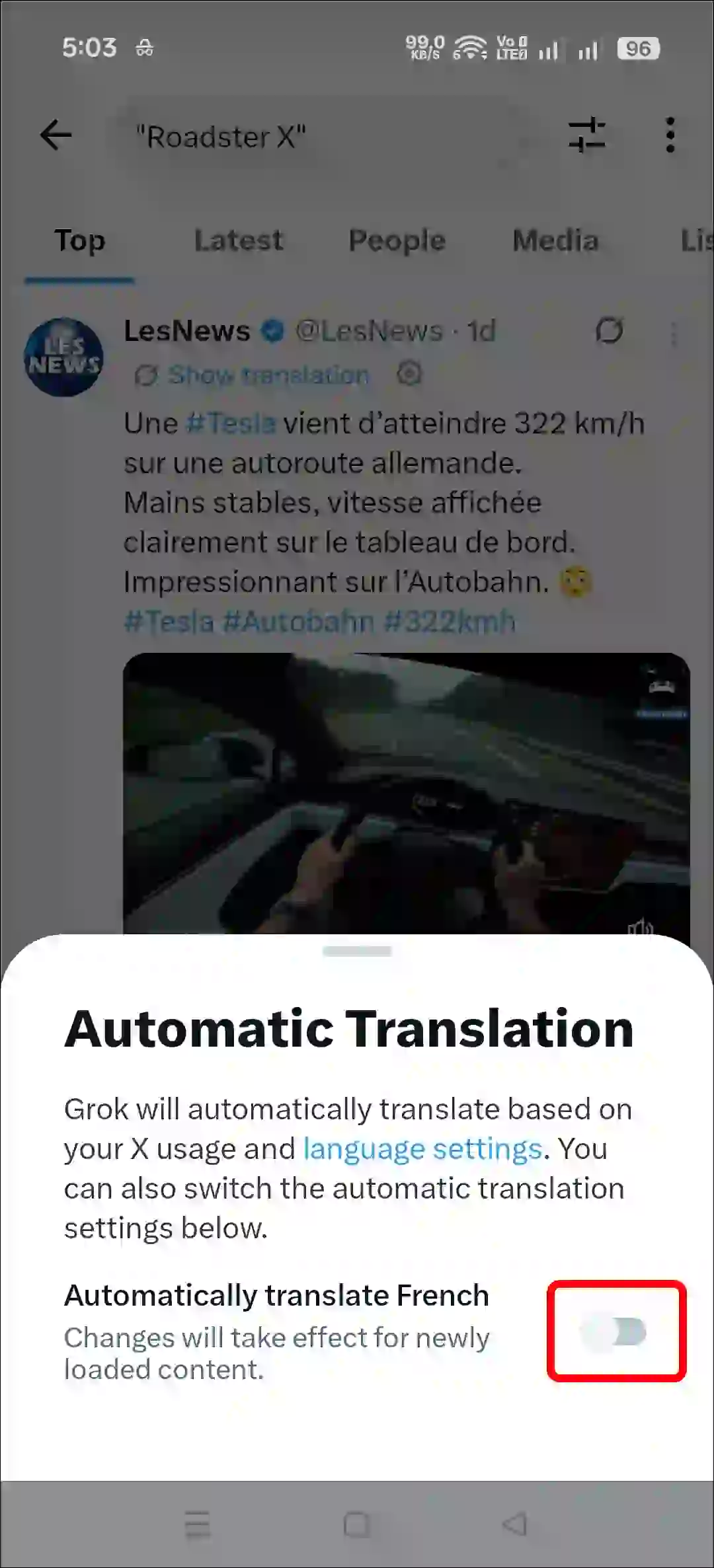
- Simply, Turn Off the “Automatically Translate” Toggle.
Also read: Send a Private Message (DM) to Someone on X
2. Disable from General Language Settings
The X App features built-in language settings that allow you to select the language for the app and its content. By default, only a single language is selected in this setting, which causes Grok to translate posts without permission.
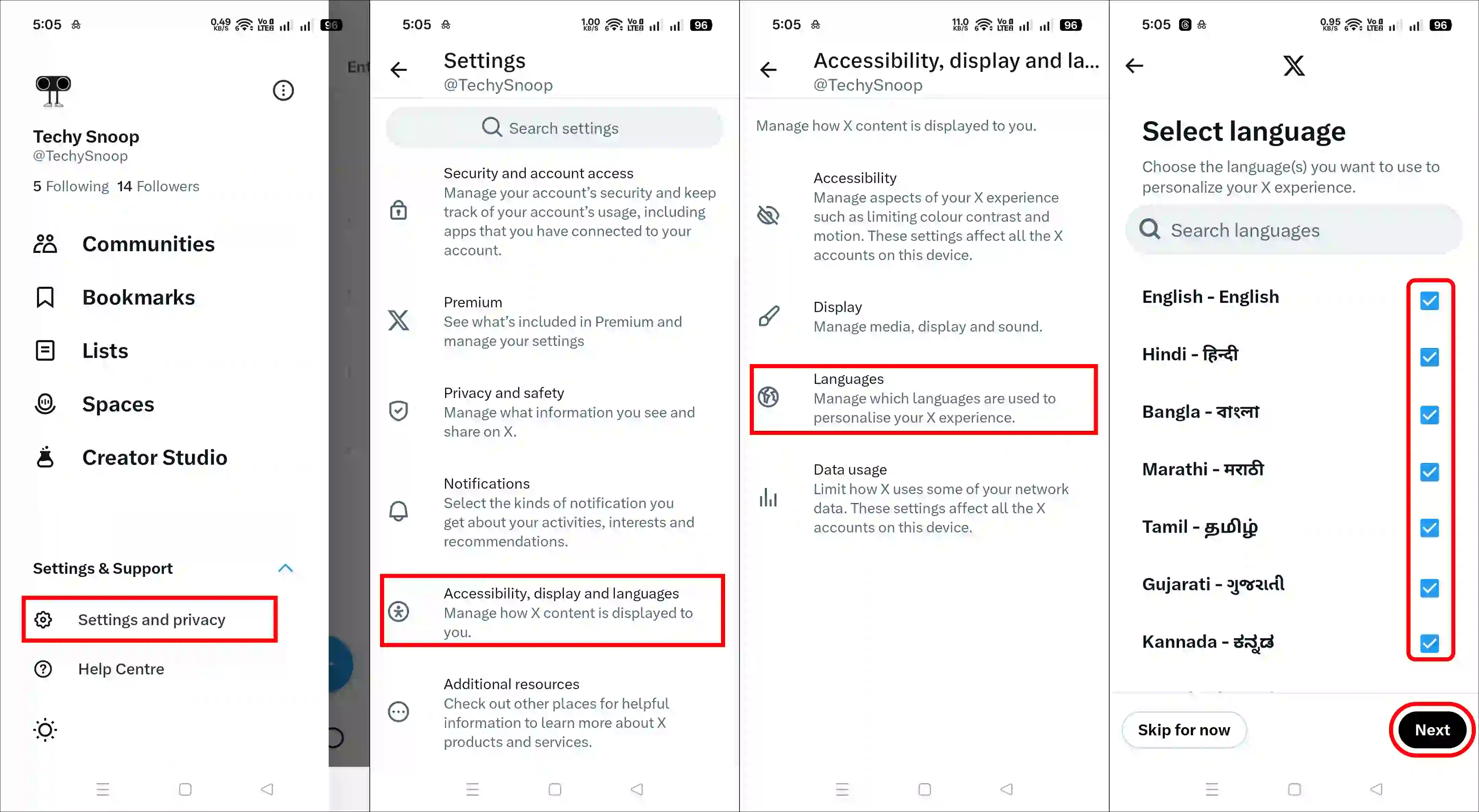
But did you know that if you select all languages in these settings, Grok will not translate the posts for you? Yes, in this situation, Grok AI gets confused about which language to translate the post into. Follow the steps mentioned below to select all languages so you can bypass Grok’s auto-translate feature.
- Open X App on Your Mobile Phone
- Tap on Profile Icon at the Top Left Corner.
- Expand “Settings & Support” and Tap on “Settings & Privacy”.
- Tap on “Accessibility, Display and Languages”.
- Tap on “Languages”.
- Select All Languages and then Next.
- Next, Follow All Instructions.
That’s all! You’re done…
Also read: Stop Videos Automatically Scrolling on X
I hope you found this article quite helpful and learned how to turn off Grok auto-translate in X. If you have any questions related to x, then tell us by commenting below. Please share this article.