Google Gemini Showing “Error 1097: Something Went Wrong”
Do you send requests to Gemini but see the message “Something went wrong (1097)” on your screen? Don’t worry! You are not alone. In this article, I have explained in detail what this error message is and how you can fix it.
What Does Gemini Error 1097 Mean?
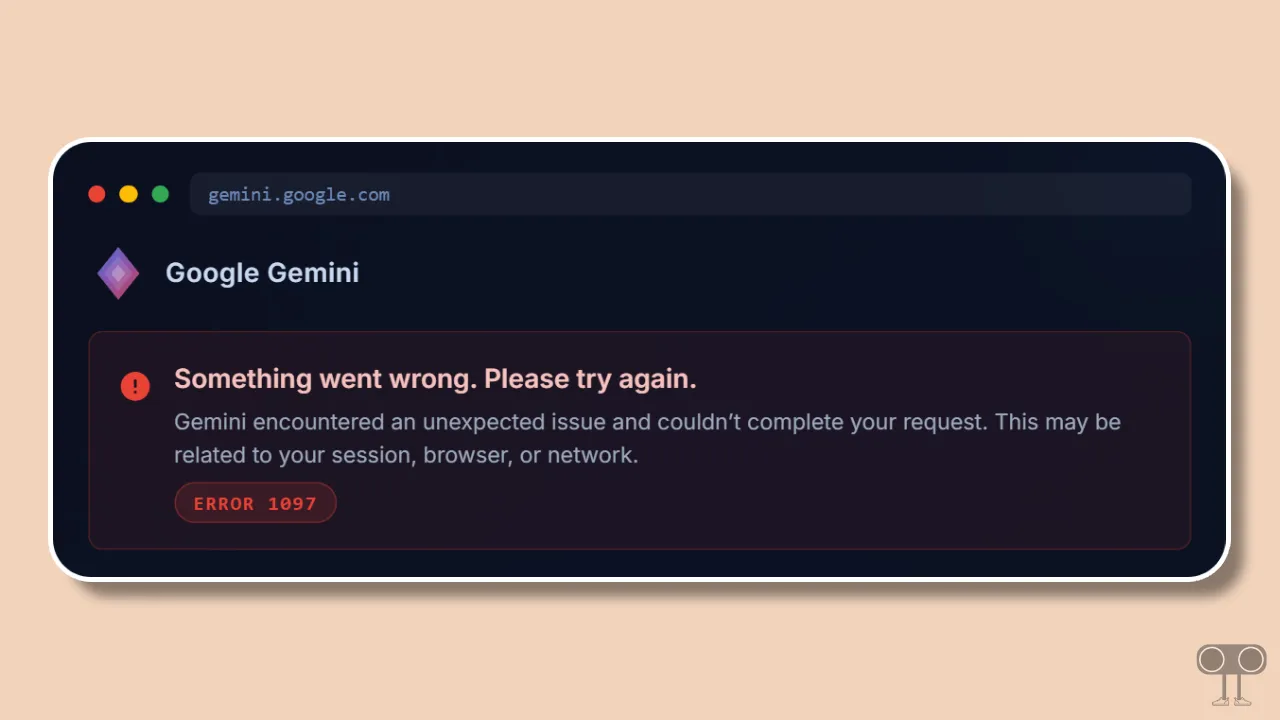
Google Gemini’s Error 1097 is a session and communication error that appears on the screen as ‘Something went wrong (1097)’. This message is causing trouble not just for mobile app users, but also for those using Gemini on the web.
The error message clearly says that Gemini is currently facing an unexpected issue and cannot complete your request. This could be due to a problem with session, browser, or network. Users usually notice this issue when they submit a prompt, start a new conversation, or switch between two Gemini models.
This problem may have some major causes, such as:
- Gemini Server Outage
- Internet Problem
- Corrupted Cache or Cookies
- Browser Extension Problem
- VPN / Proxy Interference
Fix If Google Gemini is Showing Error 1097: Something Went Wrong. Please Try Again.
Fix 1. Check Your Internet Connection
An unstable internet connection can also frequently cause this issue. To address this, ensure that the network you are connected to is functioning properly. You can also switch to a different Wi-Fi connection.
Fix 2. Check Server Status
This issue can also occur on the server side. Yes, that’s right! If the Gemini backend server experiences any kind of temporary or heavy downtime, instead of giving a response, Gemini may show an Error 1097 message on the screen. You can check the Google Cloud server status by clicking this link.
If the server is live but the problem persists, follow the other methods mentioned below, one by one. These methods can easily resolve technical issues related to the device end.
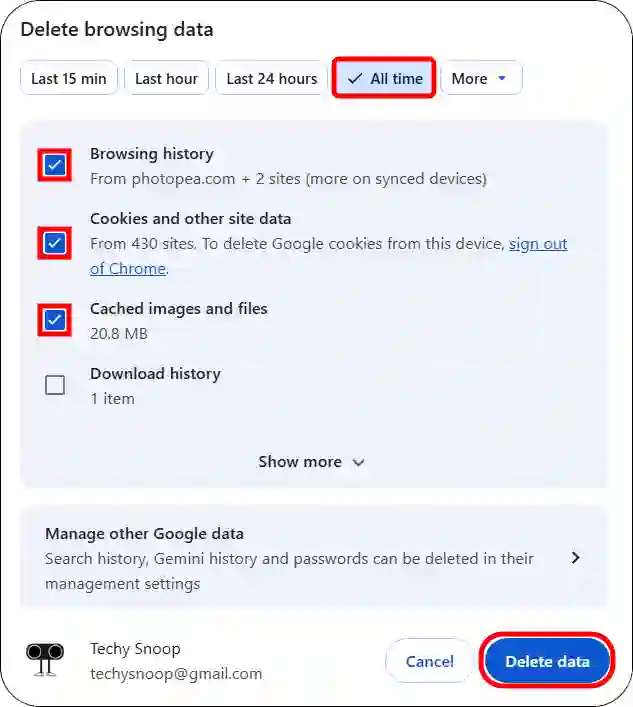
Fix 3. Clear Browser Cache & Cookies
- Open Your Browser.
- Press Ctrl + Shift + Delete (Windows) or ⌘ + Shift + Delete (Mac).
- Select Time Range to All Time and Check Cached Images and Files + Cookies and Other Site Data.
- Click on Clear Data.
- Now, Reopen Your Browser and Go to gemini.google.com and Log into Your Account.
Fix 4. Try in Incognito / Private Mode
- Open Your Browser.
- Press Ctrl + Shift + N (Windows) or ⌘ + Shift + N (Mac).
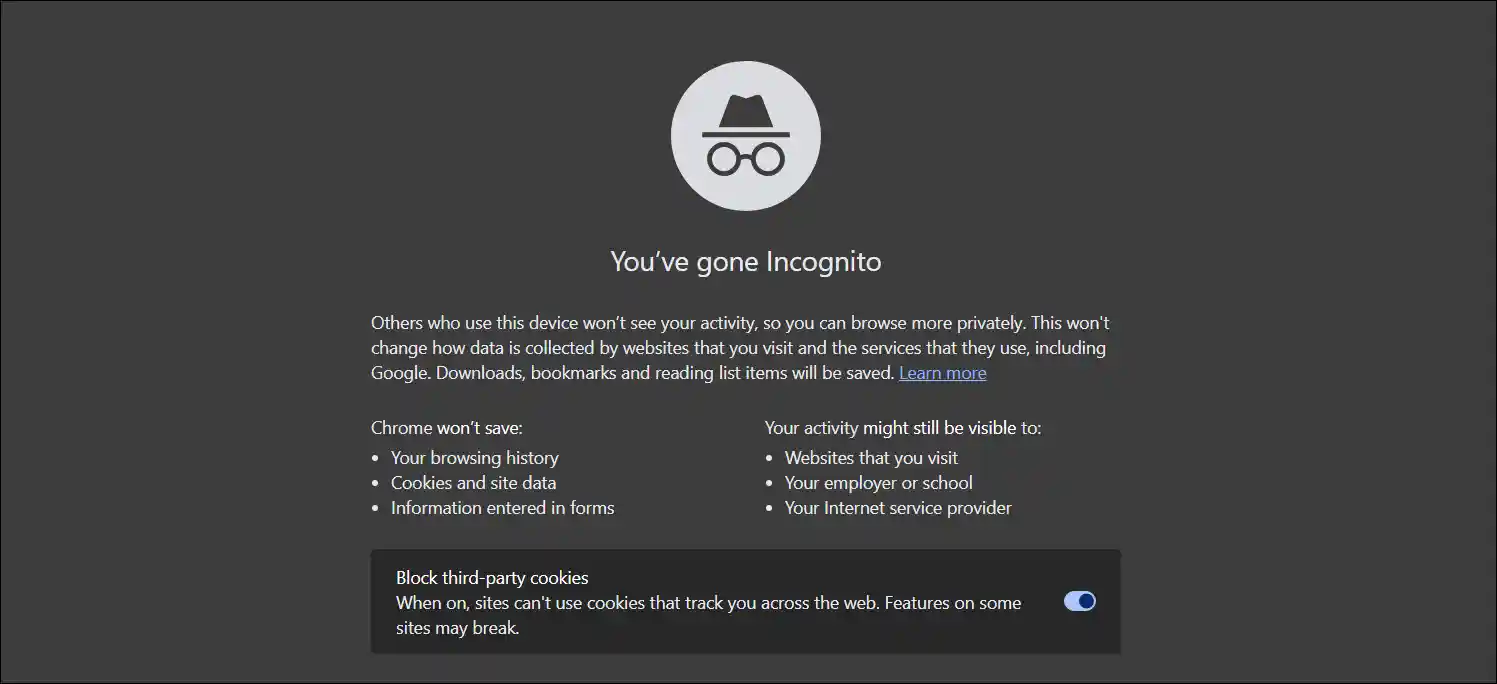
- Next, Go to gemini.google.com and Log into Your Account.
Fix 5. Disable VPN, Extensions & Ad-Blockers
Most of the time, Google Gemini isn’t compatible with third-party extensions like VPNs and ad blockers, so Gemini returns an error message in response to your request. Try disabling the extensions installed in your browser once, and then try again.
- Open Your Browser and Go to Extensions Dashboard by Following URLs.
Chrome:chrome://extensions
Edge:edge://extensions
Firefox:about:addons
Opera:opera://extensions - Now, Simply Turn Off the “Extension” Toggle.
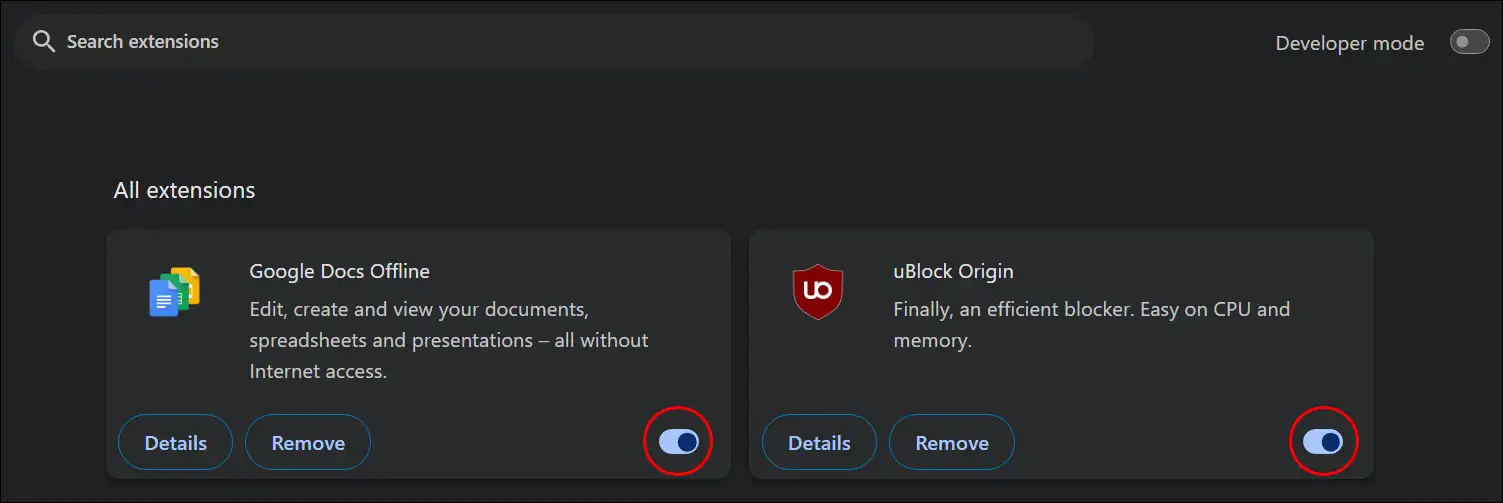
Fix 6. Clear DNS Cache
- Press Windows + S and Search “CMD” and Then Run as Administrator.
- Type
ipconfig /flushdnsand Hit Enter.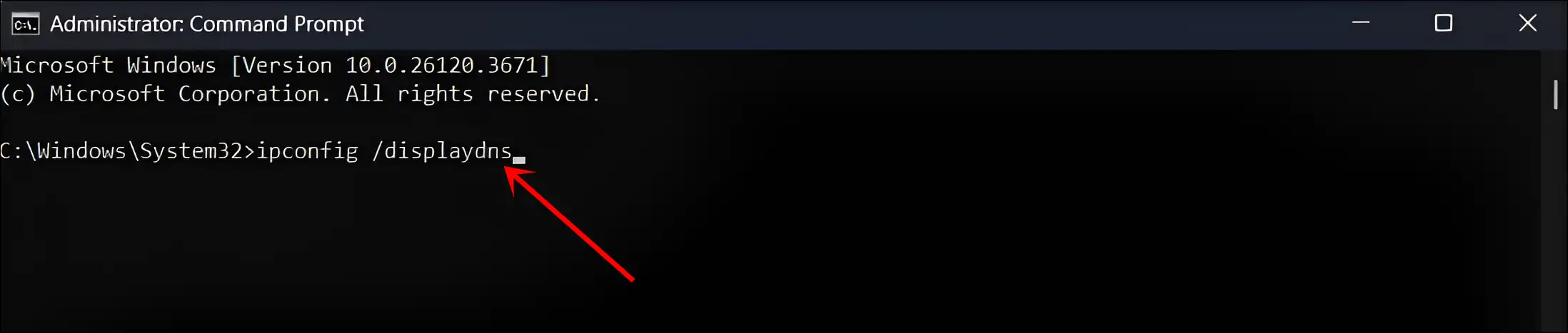
- A Successful Message will Display: “Windows IP configuration successfully flushed the DNS Resolver Cache”.
Fix 7. Try a Different Browser or Device
Sometimes, this issue may arise specifically within a particular browser or device. In such cases, you can try opening gemini.google.com on a different browser or device. This method often works.
Additional Note: If the above methods don’t work, just wait for a while. Sometimes these issues fix themselves within 15–30 minutes.